What’s New in This Tutorial?
Tutorial 4: Updating & Uninstalling Hermes — easy-to-understand guide based on official docs
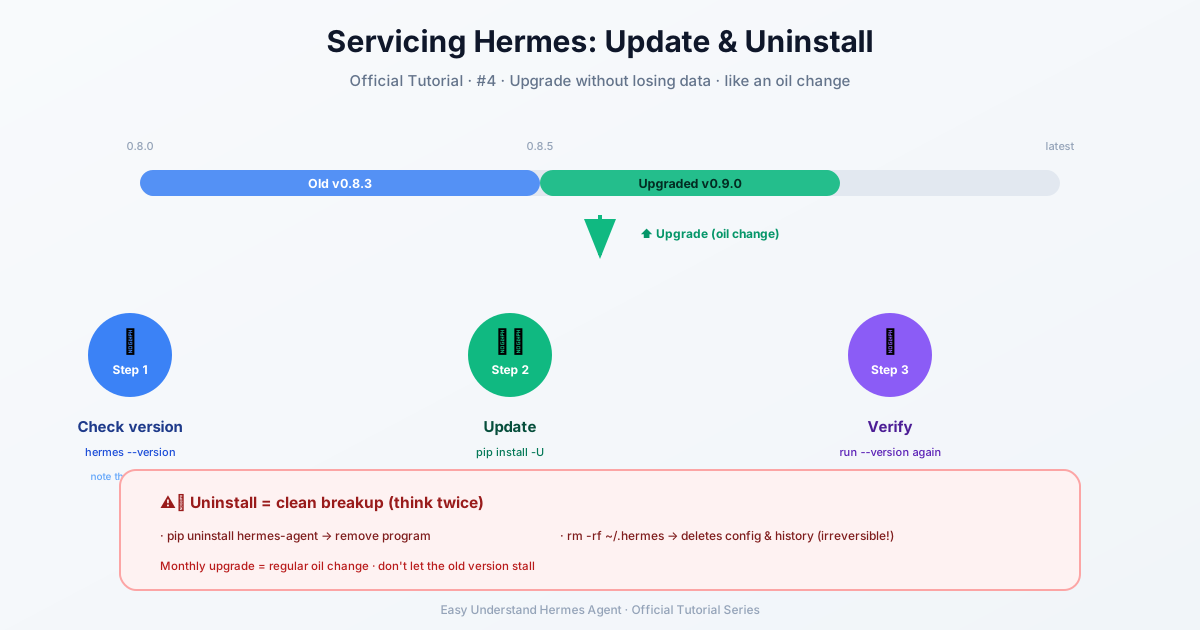
What’s New in This Tutorial?
In our last tutorial, we got Hermes up and running. Now let’s talk about keeping it fresh and, when the time comes, saying goodbye. The good news? Both are a lot easier than you might think.
Updating Hermes: One Command, Done
Updating Hermes is as simple as:
hermes updateThat’s it. This single command does a lot of heavy lifting for you. It pulls the latest code, updates all dependencies, and even checks if there are any new configuration options you should know about. If there are, it’ll ask you right then and there if you want to add them.
Pro tip: If you skip that configuration prompt (maybe you were in a hurry), you can always run hermes config check later to see what’s missing, and hermes config migrate to add those options interactively.
Note: Pinned or noninteractive installations can disable passive CLI version and banner update checks with hermes config set updates.check false. This suppresses cached update notices and passive update-check network requests (the default is true); explicit hermes update --check and hermes update still work, and this setting does not control the Desktop application’s updater.
Planning ahead: Before updating a machine that runs several profiles or services, run hermes update --plan. It’s read-only and safe on a live fleet: it prints the install kind, every running Hermes service across profiles with its supervisor and the code version it’s actually serving, and the restart mechanism each one will get. Manually launched hermes serve / hermes dashboard backends show up with their recorded bind endpoint, but the updater leaves them for their owner to restart. Image- or package-managed installs report the external update command instead.
What Actually Happens During an Update?
You might be wondering, “What’s going on under the hood?” Here’s the breakdown:
-
Safety snapshot first — Before anything changes, Hermes takes a quick snapshot of your important files (pairing data, cron jobs, config, and more). This is your safety net. If anything goes wrong, you can restore from this snapshot. By default it’s a “quick” snapshot, but you can set it to “full” for a complete backup of everything. On multi-profile installs, each profile gets its own snapshot. The snapshot is best-effort: if it fails, the update prints a
⚠ Pre-update snapshot FAILEDwarning and keeps going. -
Code pull — Hermes pulls the latest code from the
mainbranch. -
Smart rollback protection — Here’s a cool part: after pulling, Hermes checks that the critical files can still be read correctly. If something’s broken (like a merge conflict left behind), it automatically rolls back to the previous version. Your shell stays usable, no drama. After this point the updater re-executes itself on the freshly pulled code, so the remaining steps never mix old and new modules in one process — if you briefly see two
hermes updateprocesses, that’s the hand-off. -
Dependency updates — Any new or changed dependencies get installed automatically. Even when the checkout is already current, this step still runs if the environment is unhealthy or its installed package is from an older release, so
✓ Already up to date!never hides a half-updated environment. -
Config migration — New options are detected and you’re prompted to set them.
-
Desktop rebuild (stage-and-swap) — If the Hermes Desktop app was built from this checkout, it is rebuilt so the GUI matches the new code. The rebuild packs into a temporary staging directory, verifies the staged app, and only then renames it over the previous build; a failed rebuild leaves the previous app untouched and launchable, reports
⚠ Update partially complete, andhermes desktopretries it. On macOS the rebuilt bundle is also copied over a stale/Applications/Hermes.appor~/Applications/Hermes.appso the copy Finder and the Dock launch matches the backend; if that installed copy is currently running, the update leaves it alone and tells you to quit it and runhermes updateagain. -
Gateway restart — If you have gateways running, they get refreshed so the new code takes effect immediately. Service-managed gateways restart through their service manager, and manual gateways are relaunched when Hermes can map their PID to a profile. Manually launched
hermes serve/hermes dashboardbackends are different: the updater leaves them running and asks their owner to restart them. Backends owned by a running Desktop app stay the app’s responsibility. -
Multiplex migration (multi-profile installs) — Once the fleet is verified on the new code, an install with two or more profiles that still run one gateway per profile is folded into a single multiplexed default gateway when nothing blocks it; if a blocker exists, the update prints the blockers with their fixes and changes nothing. Single-profile installs are never touched.
Why the gateway restart can take a while
The restart is drain-first: the running gateway refuses new turns, then waits for in-flight work (chat turns, cron jobs, API runs) to finish before exiting, capped by agent.restart_after_turn_timeout (30 minutes by default) so a long-running job is never cut off mid-run. While that wait is in progress the updater prints, every 30 seconds, what the gateway is still holding for. To stop waiting, finish or kill the listed work, or lower agent.restart_after_turn_timeout in config.yaml (0 enters the forced drain immediately).
Checking what happened
Every hermes update run writes a machine-readable receipt to ~/.hermes/logs/update_receipts/ (the last 20 are kept, and latest.json always points at the most recent): the pre-update fleet plan, each step taken, anything skipped and why, the gateway restart outcome, and the final fleet version matrix. After the restart phase the updater also compares each live gateway’s running code against the freshly updated checkout and prints a per-profile matrix — a gateway still serving pre-update code is reported loudly with the exact restart command, and the update exits non-zero so automation never treats a mixed-version fleet as healthy.
Updating from a Different Branch
Most people will stick with the default main branch, but if you’re testing a release candidate or a feature branch, you can do:
hermes update --branch release-candidateAnd if you just want to check how far behind you are without updating:
hermes update --check --branch experimentalWhat If My Checkout Is on a Feature Branch?
Sometimes you might have left your code on a feature branch. Hermes handles this smartly:
- Fully merged branch? It switches you back to
mainand tells you it did so. - Unmerged commits but clean tree? It still switches to
mainso the update can proceed, but it prints a loud notice telling you exactly how to get back to your work. - Dirty tree (uncommitted changes)? Hermes won’t touch it. The update is marked as SKIPPED with a warning, and you get clear instructions on what to do.
If you want to stay on your custom branch (say you maintain local patches), you can set updates.parked_branch_strategy: update_in_place in your config. Then updates merge main into your branch instead of switching away. You can also set updates.auto_switch_parked_branch: false to disable the auto-switch entirely (the skip warning still fires).
Uninstalling Hermes
While the docs focus heavily on updating, uninstalling is straightforward. You can remove Hermes by deleting the installation directory and cleaning up any configuration files in your home directory. For complete removal, check your system’s package manager if you installed Hermes that way, or simply remove the hermes binary from your PATH.
Wrapping Up
Keeping Hermes updated is a one-command affair with built-in safety nets. The auto-rollback on syntax errors and the snapshot system mean you can update with confidence. And if you ever need to step away, uninstalling is just as simple.
Next up in our series, we’ll dive into more advanced configuration options. Until then, happy updating!
📖 Official Docs
This article is based on the official Hermes Agent documentation:Official docs › getting-started/updating