Hermes v2026.8.3 Update: Real-Time Voice, Agent Communication & Verifiable Citations
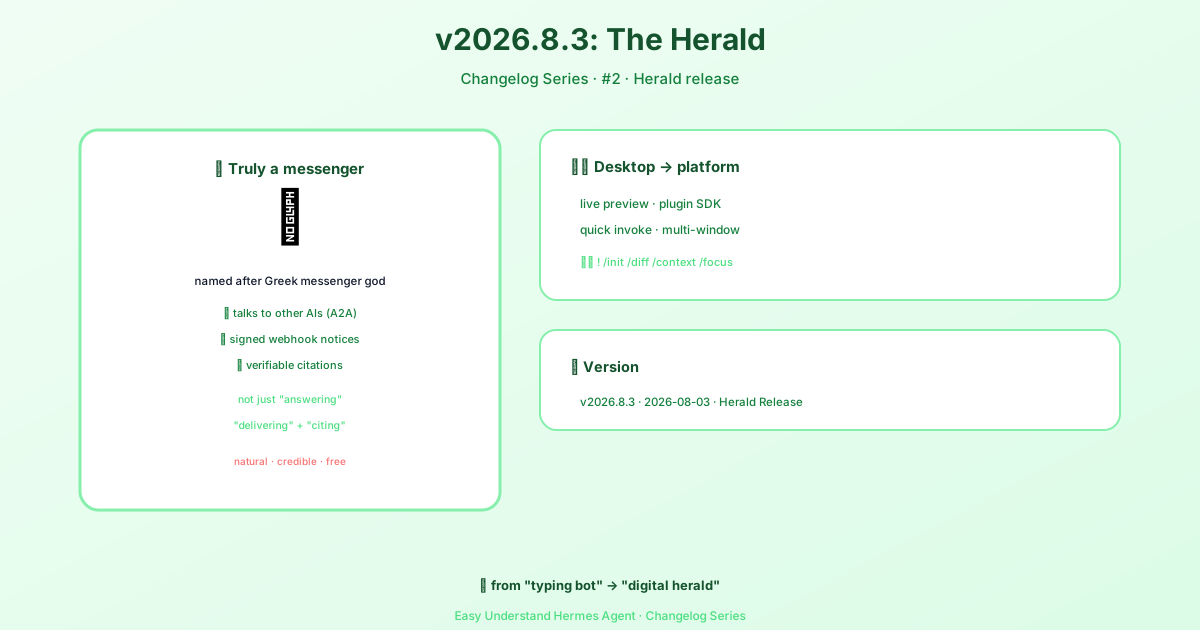
Hermes v2026.8.3 (2026-08-03) update: Hermes Agent v0.20.0 (2026.8.3)
Hermes v2026.8.3 Update: Real-Time Voice, Agent Communication & Verifiable Citations
Hey everyone, welcome back to the Hermes blog! Today we’re diving into one of the most exciting updates yet: real-time voice mode. If you’ve ever wanted to talk to your agent instead of typing every single command, this is the update for you. And the best part? It’s way easier to set up than you might think.
Let’s walk through everything you need to know to get voice mode running today.
What Voice Mode Is Actually Good For
Voice mode isn’t just a gimmick—it’s genuinely useful in a bunch of scenarios:
- Hands-free CLI workflows while you’re coding or researching
- Spoken responses right inside Telegram or Discord
- Live conversation with Hermes sitting in a Discord voice channel
- Quick idea capture while walking around, instead of stopping to type
Think of it as your agent becoming a conversation partner, not just a text box.
Three Ways to Use Voice
There are three distinct voice experiences in Hermes, and you can pick what fits your style:
| Mode | Best For | Platform |
|---|---|---|
| Interactive microphone loop | Personal hands-free use | CLI |
| Voice replies in chat | Spoken responses alongside messaging | Telegram, Discord |
| Live voice channel bot | Group or personal live conversation | Discord voice channels |
A smart path forward: get text working first, then enable voice replies, and finally try Discord voice channels if you want the full experience.
Step 1: Get Text Working First
Before touching voice, make sure the basics are solid:
hermesThen ask something simple:
What tools do you have available?If that works, you’re ready to move on.
Step 2: Install the Right Extras
Depending on what you want, install the appropriate package:
CLI microphone + playback:
cd ~/.hermes/hermes-agent && uv pip install -e ".[voice]"Messaging platforms:
cd ~/.hermes/hermes-agent && uv pip install -e ".[messaging]"Premium ElevenLabs TTS:
cd ~/.hermes/hermes-agent && uv pip install -e ".[tts-premium]"Local NeuTTS (optional):
python -m pip install -U neutts[all]Everything at once:
cd ~/.hermes/hermes-agent && uv pip install -e ".[all]"Step 3: System Dependencies
macOS:
brew install portaudio ffmpeg opus
brew install espeak-ng
Ubuntu / Debian:
sudo apt install portaudio19-dev ffmpeg libopus0
sudo apt install espeak-ng
Here’s why these matter:
portaudio→ microphone input and playbackffmpeg→ audio conversionopus→ Discord voice codec supportespeak-ng→ phonemizer for NeuTTS
Step 4: Choose Your Speech Providers
Hermes supports both local and cloud speech stacks. The easiest and cheapest setup is local STT with free Edge TTS:
- STT provider:
local - TTS provider:
edge
Add any API keys to ~/.hermes/.env:
# Cloud STT options (local needs no key)
GROQ_API_KEY=***
VOICE_TOOLS_OPENAI_KEY=***

# Premium TTS (optional)
ELEVENLABS_API_KEY=***
Quick recommendations:
- STT:
localfor privacy,groqfor speed,openaias a paid fallback - TTS:
edgefor free,neuttsfor local,elevenlabsfor best quality
Step 5: Recommended Config
Here’s a solid conservative default:
voice:
  record_key: "ctrl+b"
  submit_mode: "direct"
  max_recording_seconds: 120
  auto_tts: false
  beep_enabled: true
  silence_threshold: 200
  silence_duration: 3.0

stt:
  provider: "local"
  local:
    model: "base"

tts:
  provider: "edge"
  edge:
    voice: "en-US-AriaNeural"
One important setting: voice.submit_mode controls what happens after transcription. direct submits immediately, while draft lets you edit before sending. For editable drafts, set:
voice:
  submit_mode: "draft"
Using Voice in the CLI
Start Hermes and turn on voice:
hermesThen inside the CLI:
/voice onRecording flow:
- Press
Ctrl+B - Speak
- Wait for silence detection to stop automatically
- Hermes transcribes and responds
- If TTS is on, it speaks the answer
Useful commands:
/voice
/voice on
/voice off
/voice tts
/voice status
Great CLI Workflows
Walk-up debugging: Just say “I keep getting a docker permission error. Help me debug it.” Then continue hands-free: “Read the last error again,” “Explain the root cause in simpler terms,” “Now give me the exact fix.”
Research and brainstorming: Perfect for walking around while thinking, dictating half-formed ideas, and asking Hermes to structure your thoughts in real time.
Accessibility: If typing is inconvenient, voice mode keeps you in the full Hermes loop without the keyboard.
Tuning Behavior
If Hermes starts or stops recording too aggressively, adjust the silence_threshold and silence_duration values in your config.
That’s it! Voice mode is now live and ready to use. Start with text, add voice replies, and explore Discord voice channels when you’re ready. Happy talking!
📖 Official Docs
This article is based on the official Hermes Agent documentation:GitHub ›/releases/tag/v2026.8.3