Hermes ntfy — Lightweight Push Notifications
Pipe Hermes Agent notifications to your phone with ntfy: the identity model, how to talk to your agent from mobile, and cron jobs.
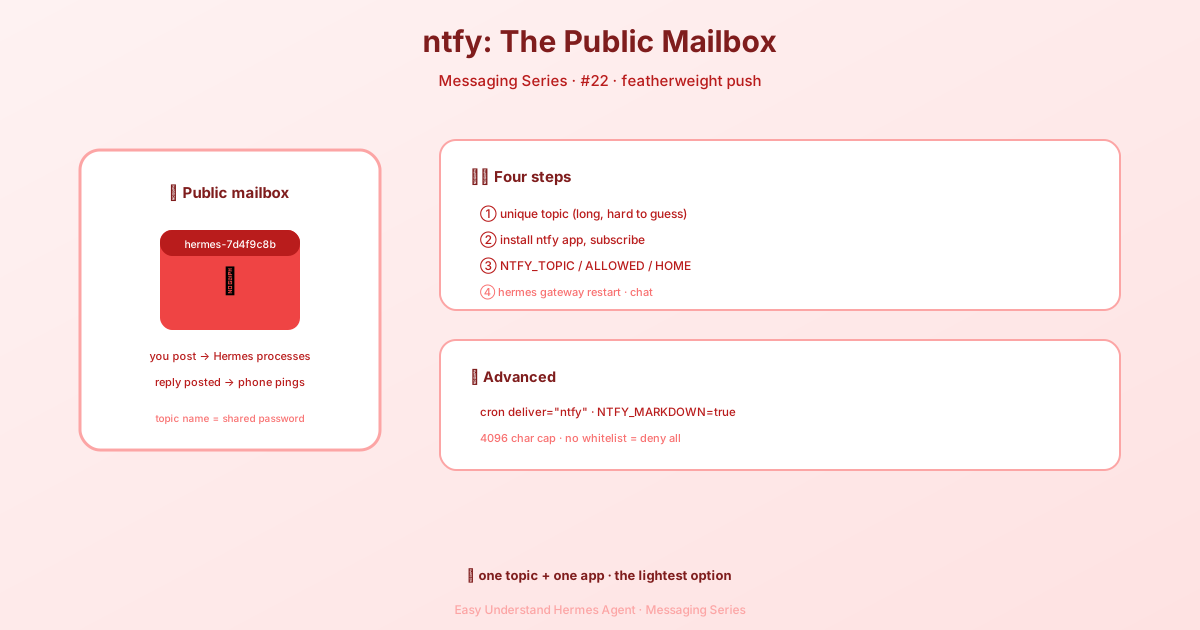
ntfy — Lightweight Push Notifications
If you’ve ever wanted to ping your Hermes agent from your phone without setting up a whole messaging platform, ntfy is about to become your new best friend. It’s a dead-simple, HTTP-based pub-sub notification service that works with the free public server at ntfy.sh or your own self-hosted instance. No SDKs, no daemons, no Node.js — just plain HTTP requests.
The best part? Any device that can make an HTTP request can talk to it. Phones, browsers, scripts, even your smartwatch. That makes ntfy a perfect lightweight push channel for Hermes: subscribe to a topic from the ntfy mobile app, send messages to that topic to talk to your agent, and get responses right on your phone.
Quick tip: Run
hermes gateway setupand pick ntfy for a guided walkthrough.
What You’ll Need
Getting started is refreshingly minimal:
- A topic name (any unique string —
hermes-myname-2026works great) - The ntfy mobile app installed and subscribed to that topic
- Optional: a self-hosted ntfy server, or an
ntfy.shaccount token for private topics
That’s it. The adapter uses httpx, which is already a Hermes dependency, so there’s nothing extra to install.
Setting Up Hermes
Option 1: Setup wizard
hermes gateway setupSelect ntfy and follow the prompts.
Option 2: Environment variables
Add these to ~/.hermes/.env:
NTFY_TOPIC=hermes-myname-2026
NTFY_ALLOWED_USERS=hermes-myname-2026
NTFY_HOME_CHANNEL=hermes-myname-2026
Here’s what each variable does:
| Variable | Required | Description |
|---|---|---|
NTFY_TOPIC |
Yes | Topic to subscribe to (incoming messages) |
NTFY_SERVER_URL |
Optional | Server URL (default: https://ntfy.sh) — point to self-hosted for privacy |
NTFY_TOKEN |
Optional | Bearer token (e.g. tk_xyz) or user:pass for Basic auth |
NTFY_PUBLISH_TOPIC |
Optional | Different topic for outgoing replies (defaults to NTFY_TOPIC) |
NTFY_MARKDOWN |
Optional | Set true to send replies with X-Markdown: true header |
NTFY_ALLOWED_USERS |
Recommended | Comma-separated topic names allowed (treated as user IDs) |
NTFY_ALLOW_ALL_USERS |
Optional | Set true to allow every publisher — only safe for private topics |
NTFY_HOME_CHANNEL |
Optional | Default topic for cron / notification delivery |
NTFY_HOME_CHANNEL_NAME |
Optional | Human label for the home channel |
Understanding the Identity Model
Here’s something important to understand before you deploy: ntfy has no native authenticated user identity. The title field on a message is publisher-controlled — anyone can set it to anything. The Hermes adapter does not use title for authorization, because that would let anyone who knows the topic spoof an allowed user.
Instead, the topic name itself is the identity. Every message published to a topic is treated as coming from the same logical user. So NTFY_ALLOWED_USERS is typically just the topic name itself — a single-entry allowlist that gates the whole channel.
This means anyone who knows the topic can talk to your agent. To make that a real trust boundary, you have three options:
- Self-host ntfy and lock the topic down with Access Control
- Use a private topic on ntfy.sh (reserved topics require an account) and protect it with
NTFY_TOKEN - Pick a long, unguessable topic name (
hermes-7d4f9c8b-2026) and treat it as a shared secret — lightest setup, but the name leaks via logs or screenshots
In all cases, avoid sending sensitive data through ntfy unless the topic is access-controlled.
Quick Start: Talk to Your Agent from Your Phone
- Pick a topic name:
hermes-myname-2026 - On your phone: install the ntfy app, tap +, enter
hermes-myname-2026 - On the host:
echo 'NTFY_TOPIC=hermes-myname-2026' >> ~/.hermes/.env echo 'NTFY_ALLOWED_USERS=hermes-myname-2026' >> ~/.hermes/.env hermes gateway restart - From the ntfy app, send a message to the topic. The agent’s reply lands as a push notification.
Using ntfy with Cron Jobs
Once NTFY_HOME_CHANNEL is set, cron jobs can deliver to ntfy:
cronjob(
    action="create",
    schedule="every 1h",
    deliver="ntfy",          # uses NTFY_HOME_CHANNEL
    prompt="Check for alerts and summarise."
)
You can also target a specific topic explicitly, or send from a shell script with the hermes send CLI:
hermes send ntfy:alerts-channel "Done!"This works even when the cron runs out-of-process from the gateway — the plugin opens its own HTTP connection.
Self-Hosting ntfy
Want full control? Self-host it:
# Docker
docker run -p 80:80 -it binwiederhier/ntfy serve

# Native
go install heckel.io/ntfy/v2@latest
ntfy serve
Then point Hermes at it:
NTFY_SERVER_URL=https://ntfy.mydomain.com
NTFY_TOPIC=hermes
NTFY_TOKEN=tk_abc123  # if you've set up access control
Self-hosting gives you topic access control, message persistence policies, attachments, and emoji tags. See the ntfy server docs for details.
Markdown Formatting
ntfy clients render markdown when the publisher sets the X-Markdown: true header. To enable it for Hermes replies:
NTFY_MARKDOWN=trueOr in config.yaml:
platforms:
  ntfy:
    extra:
      markdown: true
The mobile app supports a subset of CommonMark — bold, italic, lists, links, fenced code blocks. Check ntfy’s markdown docs for the exact set.
Outgoing-Only Setup
If you only want Hermes to push notifications to ntfy (cron summaries, alerts) and never accept messages back, set both NTFY_TOPIC and NTFY_PUBLISH_TOPIC to the same value and skip NTFY_ALLOWED_USERS entirely. With no allowlist, the agent never responds to inbound messages — your phone gets the pushes, but the conversation is one-way. Perfect for alerting scenarios.
📖 Official Docs
This article is based on the official Hermes Agent documentation:Official docs › user-guide/messaging/ntfy