Microsoft Graph Webhook: Receive Hermes Messages via Webhook
Set up a Microsoft Graph webhook listener so your Hermes Agent can deliver messages to Microsoft services.
Think of it like this: instead of your phone constantly checking your fridge to see if the milk is gone, the fridge sends you a text the moment the milk is finished. That’s exactly what a webhook listener does — it waits for a signal, then reacts automatically.
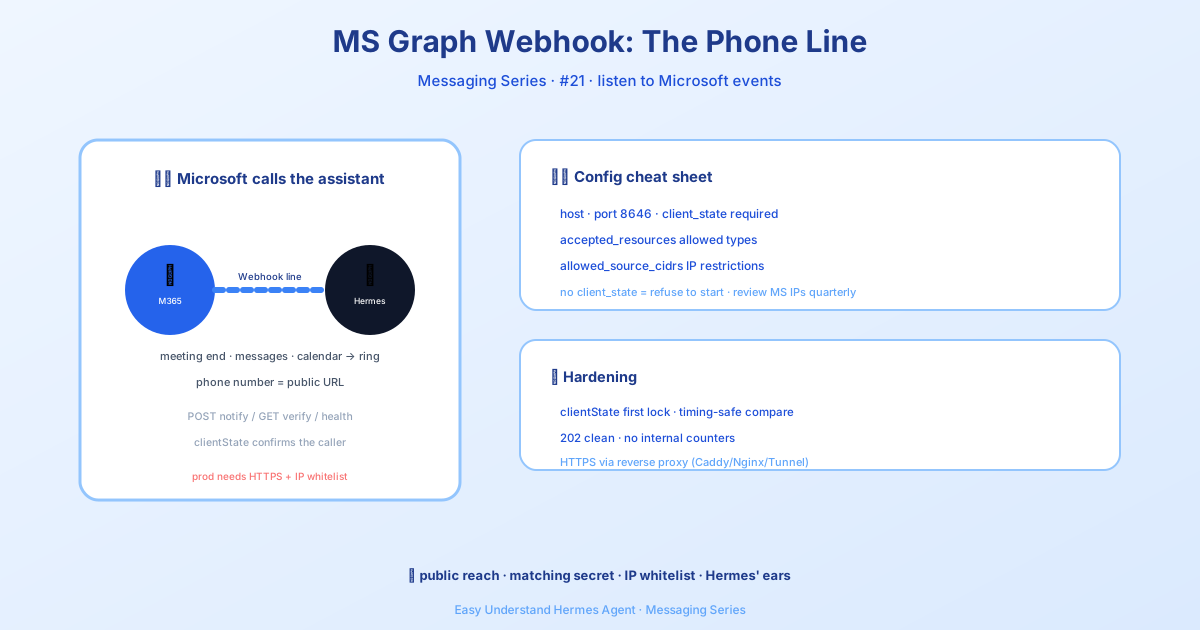
What Does This Actually Do?
The Microsoft Graph Webhook Listener is a feature in Hermes Agent that lets Microsoft 365 (M365) tell Hermes when something happens — like a Teams meeting ending, a new chat message arriving, or a calendar event being updated.
It’s not a chat bot you talk to. It’s more like a silent assistant that listens for “change notifications” from Microsoft Graph, then triggers a pipeline to do something useful — like fetching a meeting transcript and posting a summary back into Teams.
What You Need Before Starting
You’ll need three things:
- Microsoft Graph app credentials — register an app in Microsoft’s Azure portal.
- A public HTTPS URL — Microsoft Graph won’t call
localhost. A dev tunnel works for testing; a real domain is best for production. - A strong secret — this is your
clientStatevalue, used to verify that notifications are genuinely from Microsoft.
Generate a secret with:
openssl rand -hex 32Put it in ~/.hermes/.env like this:
MSGRAPH_WEBHOOK_CLIENT_STATE=your-generated-secret-hereQuick Start Setup
The simplest way to enable the listener is with a minimal config file (~/.hermes/config.yaml):
platforms:
  msgraph_webhook:
    enabled: true
    extra:
      host: 127.0.0.1
      port: 8646
      client_state: "replace-with-a-strong-secret"
      accepted_resources:
        - "communications/onlineMeetings"
Or use environment variables in ~/.hermes/.env (these are auto-merged on startup):
MSGRAPH_WEBHOOK_ENABLED=true
MSGRAPH_WEBHOOK_PORT=8646
MSGRAPH_WEBHOOK_CLIENT_STATE=your-generated-secret-here
MSGRAPH_WEBHOOK_ACCEPTED_RESOURCES=communications/onlineMeetings
Note: The bind host is only read from
extra.hostin the config file — there’s noMSGRAPH_WEBHOOK_HOSTenv-var override.
Starting the Listener
Run this command to start the gateway:
hermes gateway runOnce running, the listener exposes these endpoints:
POST /msgraph/webhook— receives change notifications from Microsoft GraphGET /msgraph/webhook?validationToken=...— handles the subscription validation handshakeGET /health— a readiness probe with counters for accepted/duplicate notifications
Making It Public
For Microsoft Graph to reach your listener, you need to expose it publicly. Use a reverse proxy, dev tunnel, or ingress. Your notification URL for Graph subscriptions will be:
https://ops.example.com/msgraph/webhookConfiguration Cheat Sheet
All settings live under platforms.msgraph_webhook.extra:
| Setting | Default | What It Does |
|---|---|---|
host |
unset (all interfaces) | Bind address. Use 127.0.0.1 for dev tunnels. |
port |
8646 |
Port to listen on. |
webhook_path |
/msgraph/webhook |
Path Graph POSTs to. |
health_path |
/health |
Readiness endpoint. |
client_state |
— | Your shared secret, compared securely. |
accepted_resources |
[] (accept all) |
Allowlist of Graph resource paths. Use * for wildcards. |
Summary & Practical Tip
The Microsoft Graph Webhook Listener is your bridge between M365 events and Hermes actions. It’s not complicated — just a listener waiting for a signal, then triggering a workflow.
Practical tip: Start with accepted_resources limited to one resource (like communications/onlineMeetings) to keep things simple. Once you see notifications flowing, expand the list. And always use a properly generated client_state — it’s your security handshake with Microsoft.
📖 Official Docs
This article is based on the official Hermes Agent documentation:Official docs › user-guide/messaging/msgraph-webhook