Open WebUI — Web Chat Interface
Open WebUI — Web Chat Interface — easy-to-understand guide based on official docs
If you have ever wished your command-line AI agent had a friendly face, this is the post for you.
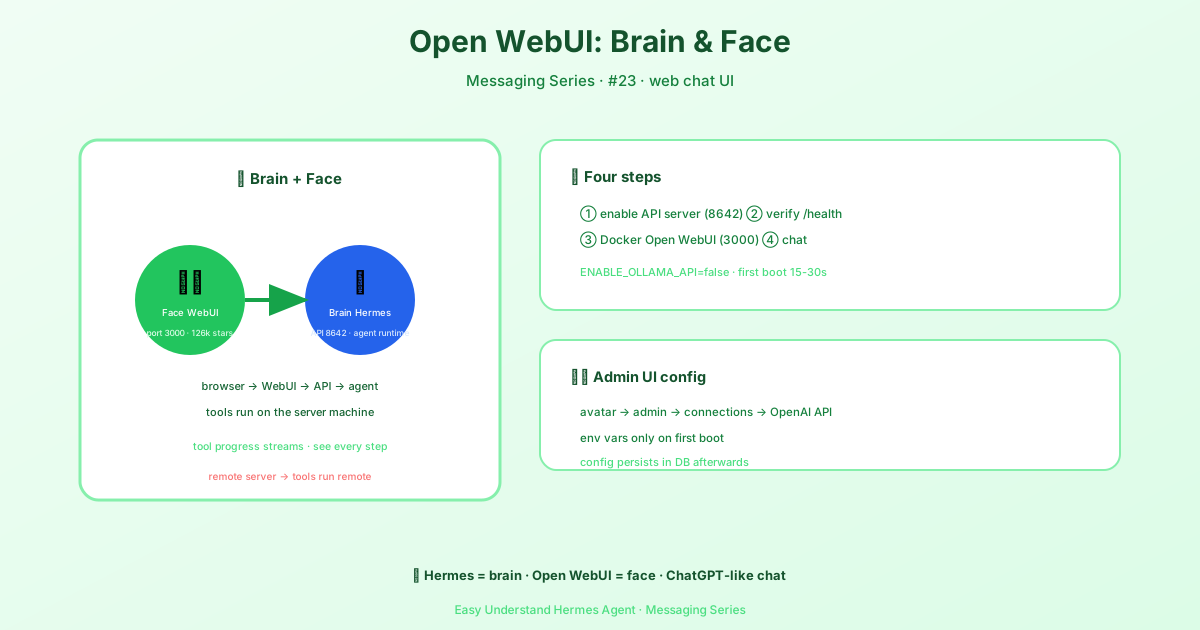
The Problem: Your Agent Lives in a Terminal
Hermes Agent is powerful, but typing commands into a dark terminal window is not exactly inviting. You want a chat window with your name on it, a history of your conversations, and maybe a place where other people can log in and use the agent too. That is exactly what Open WebUI provides.
Think of it this way: Hermes Agent is the engine under the hood, and Open WebUI is the polished dashboard you actually sit in front of.
The Simple Architecture
The setup is refreshingly simple. Open WebUI runs in your browser on port 3000. Hermes Agent runs its own API server on port 8642. Open WebUI sends your chat messages to Hermes using the same format that OpenAI uses, and Hermes streams the response back.
flowchart LR
    A["Open WebUI<br/>browser UI<br/>port 3000"]
    B["hermes-agent<br/>gateway API server<br/>port 8642"]
    A -->|POST /v1/chat/completions| B
    B -->|SSE streaming response| A
A Very Important Note About Where Things Run
Before you connect everything, understand this: Hermes is not a simple proxy that forwards your question to a language model. For every request, Hermes creates a full agent on the machine where the API server is running. That means when you ask the agent to run pwd or open a file, those commands execute on the server host, not on your laptop.
If you are running Open WebUI on your laptop and pointing it at a Hermes server on a remote machine, the agent will work on the remote machine’s files, not yours. Keep that in mind when you design your setup.
Quick Setup: Three Steps
Step 1: Enable the API Server
Open your terminal and run these two commands:
hermes config set API_SERVER_ENABLED true
hermes config set API_SERVER_KEY your-secret-key
The first command turns on the API server. The second sets a secret key so only you (or your authorized users) can talk to it. If the gateway is already running, restart it:
hermes gateway stop && hermes gatewayStep 2: Start the Gateway
hermes gatewayYou should see a message like this:
[API Server] API server listening on http://127.0.0.1:8642Step 3: Verify It Works
Run a quick health check:
curl -s http://127.0.0.1:8642/healthIf you get a healthy response, you are ready to point Open WebUI at Hermes. In Open WebUI’s settings, enter the API base URL as http://127.0.0.1:8642 and use your secret key as the API key.
Final Thoughts
The combination of Open WebUI and Hermes Agent gives you the best of both worlds: a beautiful, multi-user chat interface with the full power of a real agent that can run code, search the web, and manage files.
Practical tip: Start with a simple test. Ask the agent to run pwd and confirm the output matches the machine where the API server is running. That one check will save you hours of confusion later.
📖 Official Docs
This article is based on the official Hermes Agent documentation:Official docs › user-guide/messaging/open-webui