Tutorial 18: Tools & Toolsets — AI's Hands
Tutorial 18: Tools & Toolsets — AI's Hands — easy-to-understand guide based on official docs
This is part of the Hermes Agent official tutorial series. View all tutorials
Imagine giving your assistant a Swiss Army knife — each tool is a different blade, and a toolset is the little case that keeps the blades organized. That’s exactly what Tools & Toolsets do for Hermes Agent: they give your AI “hands” to actually do things, not just chat.
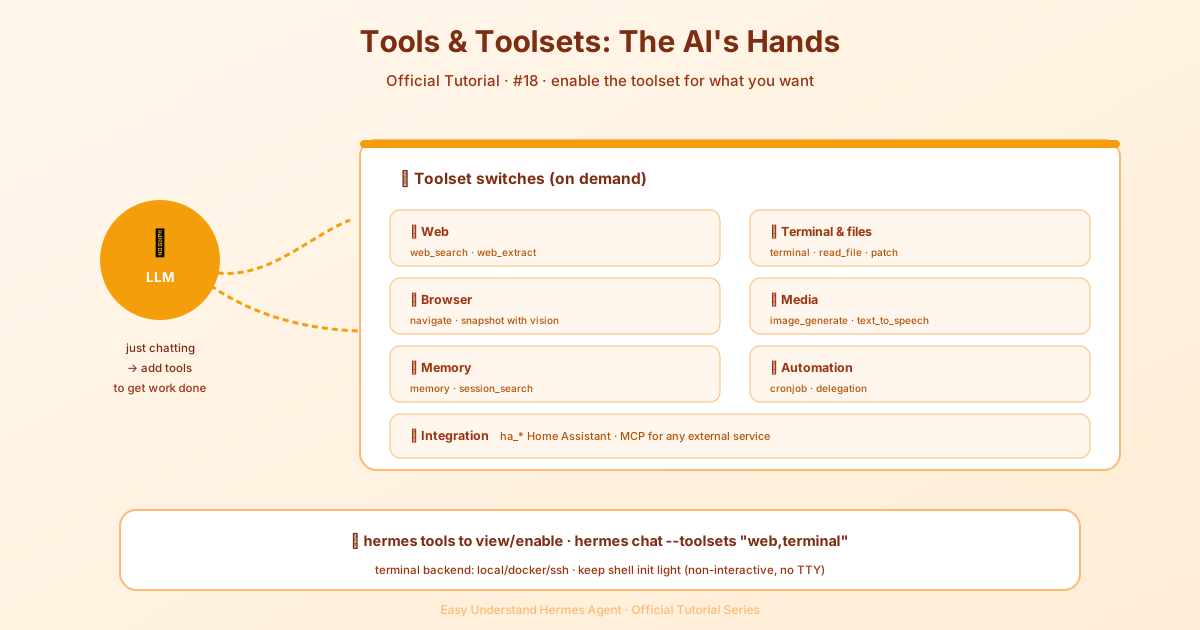
Step 1: Meet the Tools (Your AI’s Fingers)
Hermes ships with a toolbox full of built-in tools. Here’s the cheat sheet:
| Category | What it does | Examples |
|---|---|---|
| Web | Searches the internet, reads pages | web_search, web_extract |
| Terminal & Files | Runs commands, edits files | terminal, read_file, patch |
| Browser | Opens a real browser, sees the screen | browser_navigate, browser_vision |
| Media | Looks at images, makes art, speaks | vision_analyze, image_generate, text_to_speech |
| Agent orchestration | Plans, asks questions, writes code | todo, clarify, execute_code, delegate_task |
| Memory | Remembers past chats | memory, session_search |
| Automation | Schedules tasks | cronjob |
| Integrations | Talks to smart home, MCP servers | ha_*, MCP tools |
Beginner tip: Don’t memorize these. Just know they exist. You’ll pick the ones you need as you go.
Step 2: Turn Tools On (Like Flipping a Light Switch)
Tools are grouped into toolsets — think of them as pre-packed kits. You enable them per chat session or per platform (like Telegram vs. your computer).
Here’s how to control them:
# Use specific toolsets in a chat
hermes chat --toolsets "web,terminal"

# See every available tool (interactive menu)
hermes tools

# Configure tools for a specific platform
hermes tools
What you’ll see: When you run hermes tools, you get a friendly menu. Just press space to toggle tools on/off. It’s like choosing toppings for a pizza — pick what you want, leave the rest.
Step 3: Know the Common Toolsets (Your Go-To Kits)
You don’t need to remember all of them, but these are the ones you’ll use most:
web— search and read websitesterminal— run commands on your computerfile— read and edit filesbrowser— automate a real browservision— analyze imagesmemory— remember things between chatscronjob— schedule tasksdelegation— let Hermes spawn sub-agents
Example: Want Hermes to research something and save notes to a file? Use --toolsets "web,file" and you’re set.
Step 4: Special Tools (The Hidden Gems)
Two cool extras worth knowing:
1. X (Twitter) Search — Search posts on X, but it’s off by default. You need xAI credentials (SuperGrok or XAI_API_KEY). Turn it on via hermes tools → 🐦 X (Twitter) Search.
2. Tool Gateway — If you’re a paid Nous Portal subscriber, you get web search, image gen, TTS, and browser automation without separate API keys. Just run:
hermes modelThen enable individual tools with hermes tools.
Step 5: Pick Your Terminal Backend (Where Commands Run)
The terminal tool can run commands in different places:
| Backend | What it does | Best for |
|---|---|---|
local |
Runs on your machine (default) | Trusted tasks, development |
docker |
Runs in isolated containers | Security, testing |
ssh |
Runs on a remote server | Keeping the agent away from its own code |
singularity |
Uses Singularity containers | HPC / scientific computing |
Beginner tip: Start with local. Switch to docker when you’re worried about safety.
Next up: we’ll dive into the Skills System — how to teach Hermes new tricks that fit your workflow perfectly.
You now know how to give Hermes its “hands.” Next up, we’ll dive into how to create your own custom tools — so you can teach Hermes brand-new tricks that fit your workflow perfectly.
Stay tuned, and happy automating! 🚀
📖 Official Docs
This article is based on the official Hermes Agent documentation:Official docs › user-guide/features/tools