Tutorial 17: Features Overview — Everything Hermes Can Do
Tutorial 17: Features Overview — Everything Hermes Can Do — easy-to-understand guide based on official docs
Imagine you hired a super-organized personal assistant who not only chats with you but also remembers your coffee order, reads your project notes, browses the web, sets reminders, and even talks back to you out loud. That’s Hermes Agent in a nutshell. In this tutorial, we’ll walk through the Features Overview — a friendly tour of everything Hermes can do, so you know which superpowers to use and when.
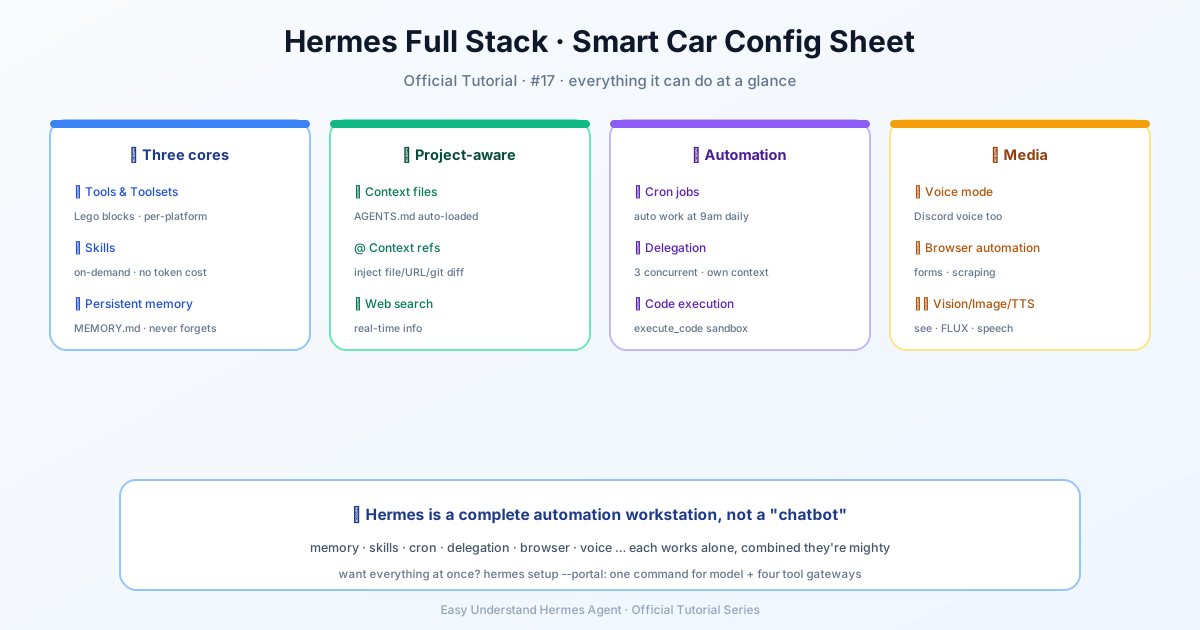
Step 1: Start with the Core — The Brain and Memory
Before you automate the world, get comfortable with Hermes’ foundation. These five features work together to make Hermes feel less like a chatbot and more like a teammate.
- Tools & Toolsets — These are the “hands” of Hermes. Each tool is a specific action (search the web, run a terminal command, edit a file). Tools are grouped into toolsets that you can switch on or off per platform. Think of it like choosing which apps to install on your phone.
- Skills System — Skills are like cheat-sheets Hermes reads only when needed. Instead of loading all knowledge at once (which wastes tokens), it pulls up a specific skill on demand. This follows the open agentskills.io standard, so you can share skills across different AI tools.
- Persistent Memory — Hermes writes down what it learns about you in two files:
MEMORY.md(facts, preferences, project details) andUSER.md(your personal profile). This memory survives across sessions, so you don’t have to repeat yourself. - Context Files — When you open a project, Hermes automatically looks for files like
.hermes.md,AGENTS.md, orCLAUDE.md. These act as “house rules” that tell Hermes how to behave in that specific folder. - Context References — Type
@in your message followed by a file name, folder path, or URL. Hermes will instantly insert that content into your conversation. For example:
@./src/main.py Please review this file for bugs.- Checkpoints — Before Hermes edits any file, it takes a snapshot of your working directory. If something goes wrong, just type
/rollbackto undo the changes. It’s like a save point in a video game.
Step 2: Automate the Boring Stuff
Now that Hermes knows you, let it work while you sleep.
- Scheduled Tasks (Cron) — Tell Hermes to run a task at a specific time. You can use plain English (“every morning at 9 AM”) or a cron expression. Jobs can even attach skills and send results to any platform.
hermes cron add "Send me a daily summary of my emails" --schedule "0 9 * * *"-
Subagent Delegation — Need multiple things done at once? The
delegate_tasktool spawns child agents. Each has its own isolated context and terminal session. By default, you can run 3 at the same time (configurable). -
Code Execution — The
execute_codetool lets Hermes write a Python script that calls other Hermes tools programmatically. This collapses a multi-step workflow into a single turn. Perfect for repetitive data tasks. -
Event Hooks — These are custom scripts that run at key moments. Gateway hooks handle logging, alerts, or webhooks. Plugin hooks can intercept tools, collect metrics, or enforce guardrails.
-
Batch Processing — Have 1,000 prompts? Hermes can process them all in parallel and output structured data (ShareGPT format) for training or evaluation. Great for researchers.
Step 3: Talk, Listen, and See the Web
Hermes isn’t just text — it’s a full multimedia assistant.
-
Voice Mode — Talk to Hermes with your microphone and hear spoken replies. Works on CLI and messaging platforms. You can even have live voice chats in Discord voice channels.
-
Wake Word — Say “Hey Hermes” to start a voice session hands-free. The on-device hotword listener works in the CLI, TUI, and desktop app. No button pressing needed.
-
Browser Automation — (Part of the Tool Gateway) Hermes can open a browser, click buttons, fill forms, and scrape data. You’ll set this up with
hermes setup --portal, which also covers web search, image generation, and text-to-speech in one command.
hermes setup --portalSummary
Hermes Agent is like a Swiss Army knife for AI assistance. Start with the Core features (memory, context, tools) to build trust. Then move to Automation (cron, delegation, hooks) to save time. Finally, explore Media & Web (voice, wake word, browser) for a truly hands-free experience.
Next up: In Tutorial 18, we’ll dive deep into the Tools & Toolsets system — how to enable, disable, and even create your own custom tools. Stay tuned!
Keep reading: Hermes A2A protocol — Two agents talking to each other over HTTP is covered end to end in the Hermes A2A protocol guide.
Keep reading: Hermes roadmap — Not sure what lands next? The Hermes roadmap tracks what the team is building.
📖 Official Docs
This article is based on the official Hermes Agent documentation:Official docs › user-guide/features/overview