Hermes Python Library: Script Your AI Agent in Code
Use Hermes Agent from Python — write scripts that call your agent, run tools, and automate workflows.
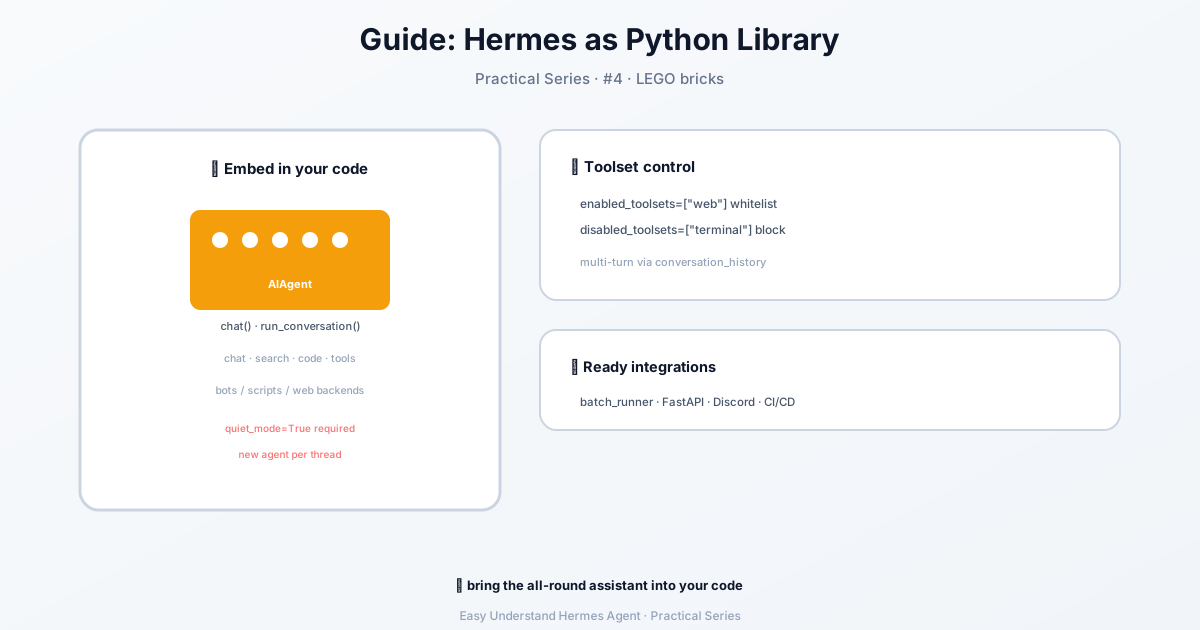
Hermes Python Library: Script Your AI Agent in Code
So you’ve been chatting with Hermes in the terminal, and now you’re thinking: “How do I make this thing work inside my own app?” Good news — Hermes isn’t just a chat tool. It’s a full-blown agent engine you can drive from any external program. Whether you’re building a VS Code extension, a custom dashboard, or a CI pipeline, Hermes has a protocol for you.
Let’s break down the three ways you can plug into Hermes programmatically.
Three Protocols, One Core
Hermes ships with three different “doors” into the same AIAgent engine. They all do the same thing under the hood — the only difference is how they talk to the outside world.
| Protocol | Transport | Best for |
|---|---|---|
| ACP | JSON-RPC over stdio | IDE clients (VS Code, Zed, JetBrains) |
| TUI Gateway | JSON-RPC over stdio or WebSocket | Custom hosts wanting fine-grained control |
| API Server | HTTP + Server-Sent Events | OpenAI-compatible frontends and web clients |
Pick the one that matches your transport and your consumer. They all drive the same core — just with different wire formats.
ACP: For IDE Integrations
If you’re building an IDE plugin, hermes acp is your friend. It starts a stdio JSON-RPC server that speaks the Agent Client Protocol — the same protocol used by VS Code, Zed, and JetBrains.
What can you do with it? Session creation, prompt submission, streaming message chunks, tool-call events, permission requests, session forking, cancellation, and authentication. Tool output gets rendered into ACP Diff/ToolCall blocks that IDEs understand natively.
hermes acp                  # serve ACP on stdio
hermes acp --check          # verify ACP dependencies
hermes acp --setup          # interactive provider/model setup
TUI Gateway: Full Control Over Everything
The TUI Gateway is the protocol the Ink TUI itself uses. Any external host can speak the same protocol over stdio or WebSocket. This is the one to pick if you want fine-grained control over sessions, slash commands, approvals, and streaming events.
The method catalog is extensive — here’s a taste:
prompt.submit           prompt.background       session.steer
session.create          session.list            session.active_list
session.activate        session.close           session.interrupt
session.history         session.compress        session.branch
session.title           session.usage           session.status
clarify.lock            config.set / config.get commands.catalog
client.capabilities     gateway.capabilities    ping
command.resolve         command.dispatch        cli.exec
reload.mcp              reload.env              process.stop
delegation.status       subagent.interrupt      subagent.steer
spawn_tree.save / list / load
terminal.resize         clipboard.paste         image.attach
Live sessions vs. saved transcripts. The gateway distinguishes between sessions currently open in the process (session.active_list, session.activate, session.close) and saved transcripts you can resume (session.list). Use the active-session methods only for what’s currently open.
Model Overrides on session.create
You can pass per-session model / provider overrides when creating a session. If the pair can’t be served — say model: gpt-5.5 with provider: anthropic — the gateway refuses up front with JSON-RPC code -32602 instead of creating a session that fails on its first turn. The error carries the model, provider, and up to five suggestions from that provider’s catalog. The check is offline and only rejects names Hermes knows belong elsewhere, so custom endpoints, aggregators, and unlisted names still work as before.
Rewinding History Safely
One important change: rewinding or editing history is now a special kind of prompt.submit. When you send a truncation, you must declare your intent:
truncate_before_user_ordinal— zero-based index of the user turn to cut attruncate_before_row_id— durable SQLite row ID (preferred)confirm_truncate— required flag saying “this is a rewind, not a normal send”confirm_empty_truncate— extra flag when the cut would empty the transcript
If you send truncation parameters without confirm_truncate, the gateway refuses with code 4004 or 4029. A rewind is also never absorbed by the busy-input policy: while a turn is still running, an ordinary submit gets steered or queued, but a rewind refuses with code 4009 (session busy). Call session.interrupt and retry the same submit until it lands — the Desktop app does this automatically, so editing a message mid-thought stops the live turn and reruns from your edit.
After a successful rewind, the response includes survivor_user_row_ids — the fresh row IDs of surviving turns. Important: every row ID you cached before the rewind is now stale. Rebinding from this list is mandatory, or your next rewind targeting an older turn will fail with 4018.
Events Streamed Back
The gateway streams events like message.delta, message.complete, tool.start, tool.generating, tool.complete, gateway.ready, and request.cancel, plus session lifecycle and error events.
Server→Client Requests: Questions the Agent Asks You
Approvals, clarify questions, sudo/secret prompts, vault unlock, MCP setup, and the desktop read/act bridges are JSON-RPC requests from the gateway to the client, not events. The frame carries a string id, and you answer with a normal JSON-RPC response bearing the same id:
← {"jsonrpc":"2.0","id":"srq-7","method":"approval","params":{"session_id":"…","request_id":"…","command":"rm -rf build","description":"…"}}
→ {"jsonrpc":"2.0","id":"srq-7","result":{"choice":"once"}}
Methods include approval → {choice}, clarify → {answer} (or {answers} for batches, with clarify.lock to lock one answer early), and sudo / secret / vault.code / vault.unlock_prompt → {value}. If your host doesn’t implement a method, reply with a JSON-RPC error (-32601) so the agent fails fast instead of waiting out the timeout.
Advertise that you answer them. Once per connection, after gateway.ready, call client.capabilities with {"server_requests": true}. A WebSocket client that never does is treated as a build that predates server→client requests, and the gateway fails every such request for it immediately instead of stalling. There’s no grace path — add the one call. A session with no client attached isn’t affected; its open questions wait in open_requests for the reconnect replay.
When the gateway withdraws a question (timeout, interrupt, answered elsewhere) it emits request.cancel { id, method, reason }; clear only the matching prompt. session.resume / session.activate results and session.events.since carry open_requests — the still-open frames — so a reconnecting client can re-render and still answer them.
Rebuilding the In-Flight Turn on Reconnect
session.resume / session.activate results carry inflight — the turn still running (or the retained failed one) that history doesn’t hold yet: the user prompt, assistant text streamed so far, streaming, mid-turn corrections, and error fields. When the turn was started by the gateway rather than typed by a person (a background-process completion, an async delegation result, a hidden scaffolding prompt), inflight also carries the same display_kind / display_metadata the persisted row will get, so a client renders the live prompt exactly as it will render history after the turn lands. Both fields are absent for genuine user input — never infer origin from the prompt text.
API Server: OpenAI-Compatible HTTP
For web clients and OpenAI-compatible frontends (Open WebUI, LobeChat, LibreChat), the API server speaks HTTP + Server-Sent Events. It’s language-agnostic — any client that can make HTTP requests can talk to Hermes.
Which One Should You Use?
- Building an IDE extension? ACP.
- Need fine-grained session control and custom UI? TUI Gateway.
- Want OpenAI-compatible endpoints for a web app? API Server.
All three drive the same agent core. The choice is just about your transport and how much control you need. Happy scripting!
📖 Official Docs
This article is based on the official Hermes Agent documentation:Official docs › developer-guide/programmatic-integration