Hermes Agent Wallpapers & Skins — Theme Guide
Change how Hermes Agent looks: built-in skins from golden cute to volcano orange, custom colors, and the three /skin commands that switch them.
Just like swapping your phone’s wallpaper to match your mood, Hermes Agent lets you re-skin its entire command-line look in seconds.
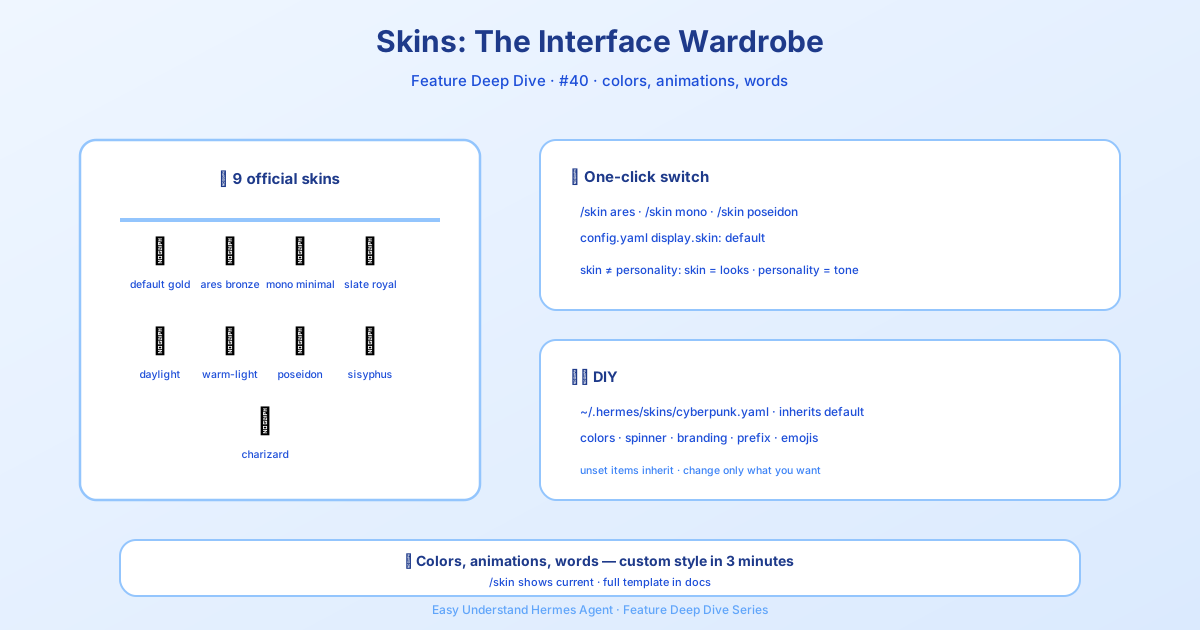
Skin ≠ Personality: Two Different Things
Hermes cleanly separates what the AI says from how the terminal looks:
- Personality controls tone and word choice — polite, blunt, poetic, whatever you prefer.
- Skin changes only the visual layer: border colors, loading animations, even the brand name displayed.
This means you can keep your AI assistant sounding professional while the interface goes full neon-dark or crisp daylight-bright.
Is a Wallpaper Change What You Want?
If you went looking for a new wallpaper for your Hermes Agent, a skin is the thing that changes how the interface looks — the interface itself is re-themed instead of an image sitting behind your icons. Type /skin to see the current look and every available one, and remember that a custom skin is just a YAML file full of hex colors.
Switching Skins: Three Commands
Inside any Hermes conversation, just type:
/skin                # show current skin + list all available
/skin ares           # switch to the built-in "ares" skin
/skin mytheme        # load a custom skin from ~/.hermes/skins/mytheme.yaml
Want a skin applied automatically every time? Edit ~/.hermes/config.yaml:
display:
  skin: default
Now Hermes boots straight into your chosen look.
Built-in Skins: From “Golden Cute” to “Volcano Eruption”
| Skin | Vibe | Highlights |
|---|---|---|
default |
Gold + kawaii | Classic Hermes look, warm gold borders, cute emoji in loading text |
ares |
Deep red + bronze | War-god style; verbs like “forging” and “marching,” plus sword-and-shield ASCII art |
mono |
Pure grayscale | Zero color — perfect for minimal terminals or screen recordings |
slate |
Cool blue | Developer-focused, royal blue borders, calm and professional |
daylight |
Light theme | Dark text + blue borders, designed for white backgrounds |
warm-lightmode |
Warm brown light | Parchment tones for users who like cozy bright themes |
poseidon |
Sea-god teal | Deep ocean gradients, “probing depth” loading text, trident ASCII art |
sisyphus |
Grayscale + persistence | Boulder theme; loading text says “pushing the rock uphill” |
charizard |
Volcanic orange | Flame gradients, “measuring burn” loading text, dragon ASCII art |
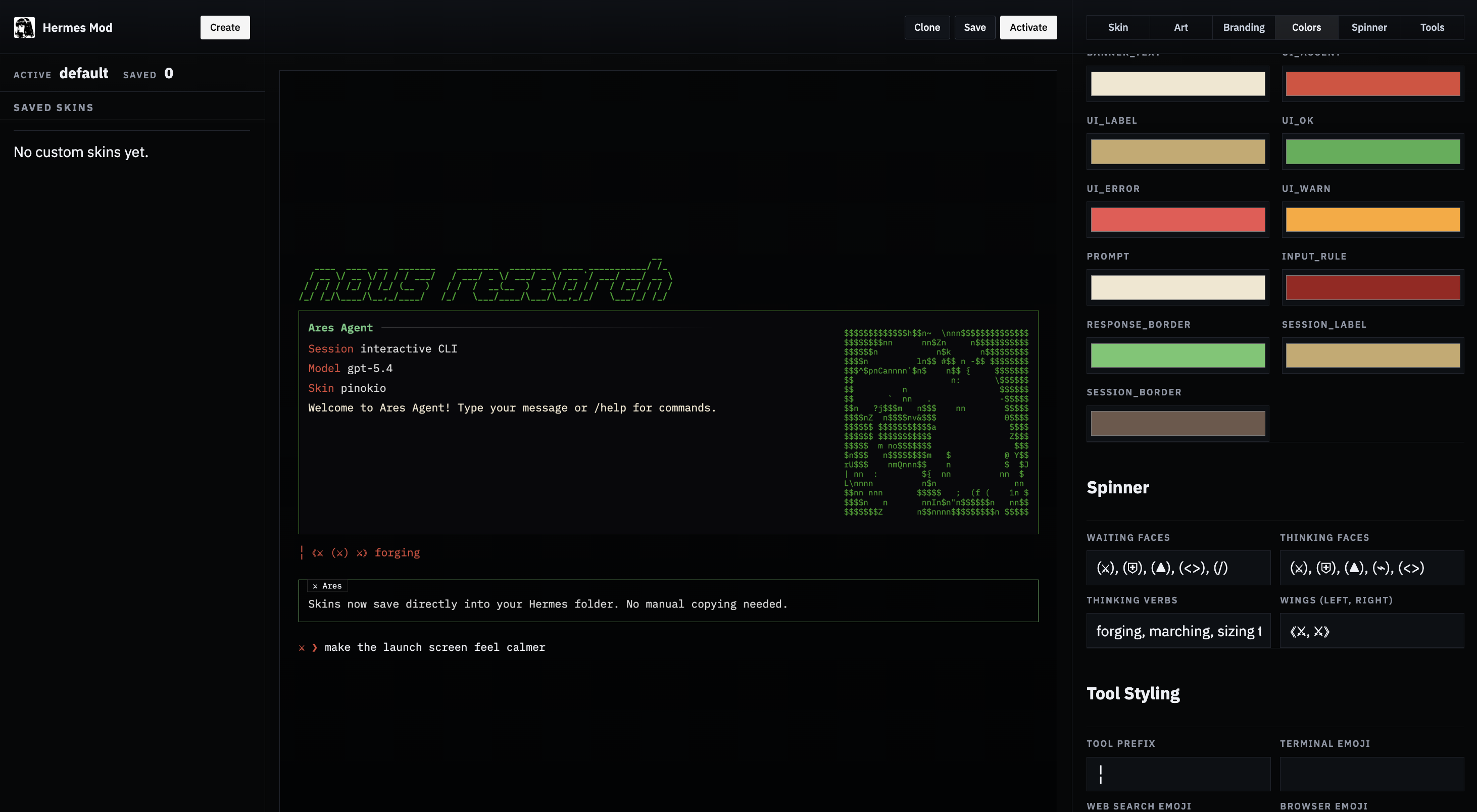
Custom Skins: Every Color Is Yours
All skins are built around a colors: block. You can tweak any value using hex codes:
colors:
  banner_border: "#CD7F32"   # banner border color
  banner_title: "#FFD700"    # title text color
  banner_accent: "#FFA500"   # section heading color
Configurable keys include banner borders, titles, accent text, status bars, and tool-activity prefixes. Just drop a new YAML file into ~/.hermes/skins/ and you’ve got your own personal theme.
Summary & Practical Tips
The skin system makes Hermes feel genuinely yours — whether you want beauty, focus, or better readability on camera.
Pro tip: If you often use your terminal outdoors in bright sunlight, go straight for daylight or warm-lightmode. And if you’re recording a tutorial, mono keeps viewers’ eyes on the commands, not the rainbow. Start with a built-in skin to get a feel, then experiment with your own colors — it’s the easiest way to make Hermes truly yours.
📖 Official Docs
This article is based on the official Hermes Agent documentation:Official docs › user-guide/features/skins