Web Search & Extract — AI Surfing the Web
Web Search & Extract — AI Surfing the Web — easy-to-understand guide based on official docs
Web Search & Extract: Giving Your AI Eyes on the Internet
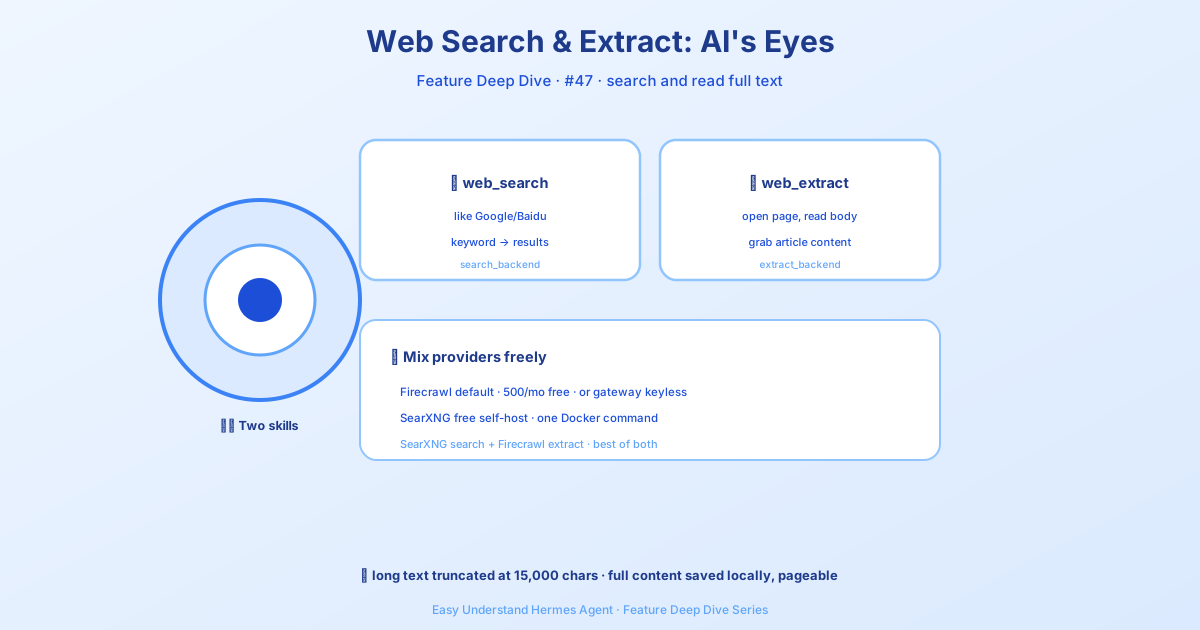
Imagine asking a super-smart assistant to “go find the latest price of that gadget, read the spec sheet, and summarize it for me.” That’s exactly what Hermes Agent can do, thanks to its web search and extract tools. It’s like giving your AI a browser, a highlighter, and a notepad all at once.
The Backend Providers: Your AI’s Choice of Search Engine
Hermes doesn’t rely on just one way to search the web. It supports several different “backends” — think of them as different search engines and page-reading services. You can pick one, or let Hermes automatically choose based on which API keys you have.
Here’s the quick rundown:
| Backend | What it does best |
|---|---|
| Firecrawl (default) | Searches and reads pages. Great all-rounder. |
| SearXNG | Free, private, self-hosted. Search only. |
| Parallel | Fast, multi-mode searching. |
| Tavily | Optimized for AI agents. |
| Exa | Great for niche searches (papers, news, companies). |
| OpenAI Native (Codex) | Search via a ChatGPT/Codex subscription. Search only. |
A few of these are search-only — Brave Search, DDGS, xAI, and OpenAI Native. Pair any of them with an extract-capable backend (Firecrawl, Tavily, Perplexity, Keenable, Exa, or Parallel) when you also need web_extract.
Setting It Up: It’s Just a Config File
You don’t need to write code. Just edit your config.yaml file like this:
web:
  backend: firecrawl  # or searxng, parallel, tavily, exa
Pro tip: You can mix and match! Use a free search backend and a paid extract backend:
web:
  search_backend: "searxng"      # Free searching
  extract_backend: "firecrawl"   # Reliable page reading
The “No-Key” Trick: SearXNG for the Frugal
If you don’t want to pay for an API key, SearXNG is your friend. It’s a free, open-source metasearch engine that queries 70+ search engines for you. Just point Hermes to your own instance:
web:
  search_backend: "searxng"
  # Set this in your environment variables:
  # SEARXNG_URL=http://localhost:8080
Caveat: SearXNG only searches. To actually read the content of a page, you’ll need a separate extract provider (like Firecrawl) set in extract_backend.
Even with no credentials at all, a fresh install still gets working web_search and web_extract: requests rotate round-robin across the keyless free tiers of Exa, Parallel, Firecrawl, and Keenable, and a rate-limited request automatically retries on the next vendor in the ring. This tier is strictly last-resort — any configured backend or present API key always wins — and you can disable it entirely with web.keyless_fallback: false.
Bonus safety net: if your chosen keyed backend fails a call (bad key, outage, upstream error), that single call automatically retries on the keyless ring instead of erroring. The failover is never sticky — the next call tries your chosen backend again. Turn it off with web.keyless_rescue: false.
The Browser: Your AI’s Hands and Eyes
Once your AI finds a page, it needs to “see” it. That’s where the browser settings come in. You can control how it behaves:
browser:
  inactivity_timeout: 120   # Auto-close idle browser after 2 minutes
  command_timeout: 30       # Give up on a page after 30 seconds
  record_sessions: false    # Set to true to record video of the AI's browsing
Advanced tip: If you have your own browser open (like Chrome), you can even connect Hermes to it directly using a special “CDP” link. This lets the AI use your existing logged-in sessions.
Summary & Practical Tip
Hermes Agent’s web tools are like a Swiss Army knife for the internet. You can search, read, and extract information from any page, all through simple configuration. The key is to start with the default (Firecrawl) — it just works. If you hit a paywall or want to save money, switch to SearXNG for searching and pair it with a separate extract backend (like Firecrawl).
My #1 tip: Start simple. Set backend: firecrawl, add your FIRECRAWL_API_KEY, and run a test search. Once you see it working, then experiment with mixing backends to optimize for cost or speed. Happy AI surfing! 🌊
📖 Official Docs
This article is based on the official Hermes Agent documentation:Official docs › user-guide/features/web-search