Tool Search — Load Tools on Demand
Tool Search — Load Tools on Demand — easy-to-understand guide based on official docs
Imagine carrying a 3000-key keychain just to open your front door. That’s what happens when your AI assistant has hundreds of external tools loaded into its working memory — every tool comes with a “user manual” (JSON Schema), and the AI has to read all of them, even for a trivial task.
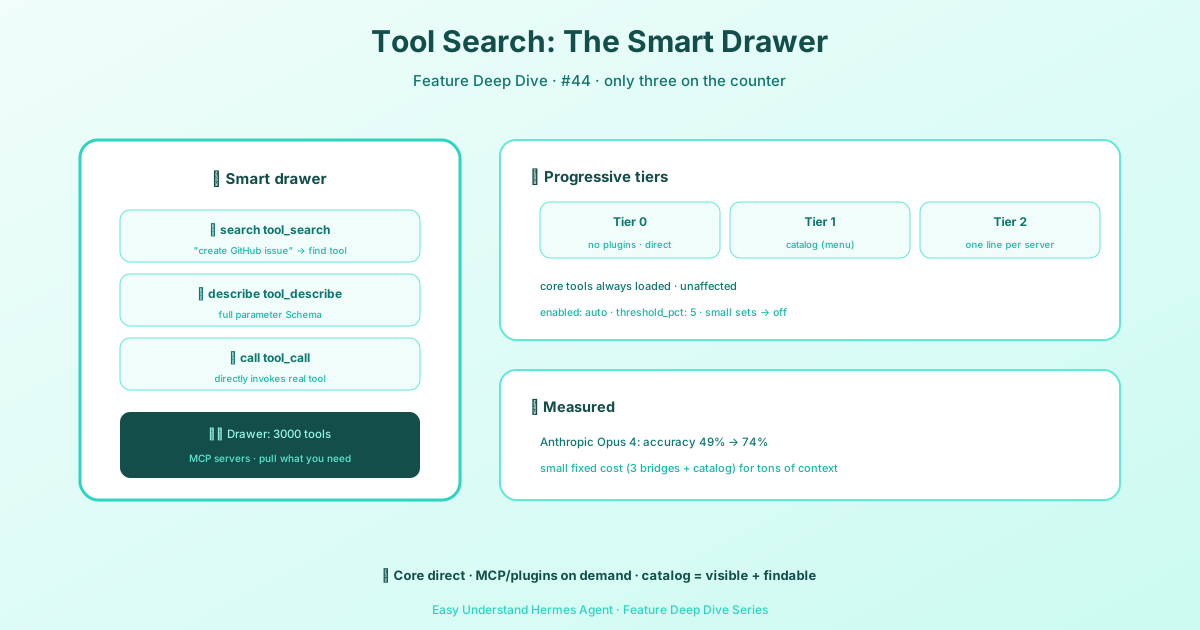
Tool Search fixes this by giving your AI a smart warehouse manager: it only keeps a few everyday tools in hand, and fetches the rest when actually needed.
Why Bother?
When you connect many external services (GitHub, Cloudflare, Linear, etc.) to Hermes Agent, each one adds a chunk of documentation to the AI’s context window. That’s precious “working memory” — and it gets diluted by irrelevant instructions. The result? Slower responses, worse reasoning, and sometimes the AI “forgets” your core instructions entirely.
How It Works
With Tool Search enabled, the AI no longer sees all tools directly. Instead, it sees three “bridge” tools:
tool_search(queries, limit?)   # Search the tool catalog (one or more queries)
tool_describe(names)           # Read the full schemas for one or more tools
tool_call(calls)               # Execute deferred tools; calls is an array of {name, arguments}
calls takes one entry per invocation; a single local call is an array of one. Only connectors__ names may be batched together; mixed and multi-local batches are rejected. A multi-entry batch that names a local tool is rejected with a correction that restates the valid shape using the caller’s own first entry, and a calls value emitted as a JSON string is parsed like the array form.
A typical flow looks like this:
# 1. Find the right tool
tool_search(["create a github issue"])
# → returns matching tools

# 2. Read its manual
tool_describe(["mcp_github_create_issue"])
# → shows required parameters

# 3. Call it
tool_call({ calls: [{ name: "mcp_github_create_issue",
                      arguments: { title: "Fix bug", body: "..." } }] })
# → issue created successfully
Key point: when the AI calls tool_call, the system “unwraps” the bridge and runs the real tool. All security checks and approval workflows still apply — the AI simply sees less, but does the same.
When Does It Kick In?
Tool Search uses a tiered disclosure strategy:
| Level | Condition | What the AI sees |
|---|---|---|
| 0 | No deferred tools | All tools shown directly, no bridge |
| 1 | Few tools | Bridge + short list (name + one-line description) |
| 2 | Many tools (e.g., Cloudflare’s 3300) | Bridge + one-line summary per server (name + tool count) |
Nice touch: if you mix a small tool (Linear) with a giant one (Cloudflare), the system keeps Linear’s full list and only collapses Cloudflare into a single line — no blanket hiding.
Core Tools Always Stay
Hermes’ built-in tools (terminal, file I/O, web search) are never lazy-loaded by default. They stay directly available because they’re the AI’s core capabilities. Only external MCP tools and plugins get shelved into the “warehouse.”
There’s one exception: cold, event-triggered built-ins — things like computer_use, session_search, and some desktop helpers — can be deferred if you name them in tools.tool_search.defer. The shipped curated list covers those; an explicit list replaces it, and defer: [] keeps every tool eager.
Connectors (Remote Tools)
When you are signed in to the Nous Portal, the bridge additionally reaches connectors — remote tools served by the managed tool gateway. They are never registered locally: tool_search sends each query to the gateway, adds the gateway’s hits to the local catalog as documents (tagged source: "connectors", named connectors__<connector>__<tool>), and ranks both with the same BM25 pass and the same rarest-token rule, so limit caps the group as a whole and a connector tool that answers the query is never pushed out by local tools that share one word with it. The gateway call is bounded at 30 seconds; a slow or dark gateway degrades to local results only. tool_describe fetches connector schemas from the gateway, and tool_call sends each connector entry in a batch as its own gateway request, in input order. Signed out (or when the gateway does not serve connectors for your account), everything above is invisible: local search behaves exactly as described in the rest of this page, with no errors shown to the model. A connector call that needs an account you haven’t linked returns a CONNECTION_REQUIRED error. The manage_connections tool lists connectors and their connection state and starts an authorization: in the desktop app the call shows a card, blocks until each app is connected or skipped, and reports the outcomes; elsewhere it returns a connect link per app for the user to open. Disconnecting an account is done by the user in the Portal. The same tool also installs, enables and authorizes local MCP servers from the catalog (targets with mcp: true), so it is present whether or not you are signed in; only the managed-connector actions need the sign-in.
Final Thoughts
Tool Search is like giving your AI a just-in-time inventory system — it solves the “attention dilution” problem when tool count explodes. Practical tip: if your AI feels sluggish or off-target on simple tasks, check how many external tools are attached. Enable Tool Search and you’ll likely see a noticeable boost in both speed and accuracy. For everyday use, keep your tool count under 10 for the smoothest experience.
📖 Official Docs
This article is based on the official Hermes Agent documentation:Official docs › user-guide/features/tool-search