Browser Automation — AI Surfs the Web
Browser Automation — AI Surfs the Web — easy-to-understand guide based on official docs
Imagine hiring a tireless personal assistant who sits at your computer, opens websites, fills out forms, clicks buttons, and gathers information—all you have to do is say, “Go get it done.”
That’s exactly what Hermes Agent’s browser automation does. It lets AI operate a web browser just like a human would, handling your online tasks from start to finish.
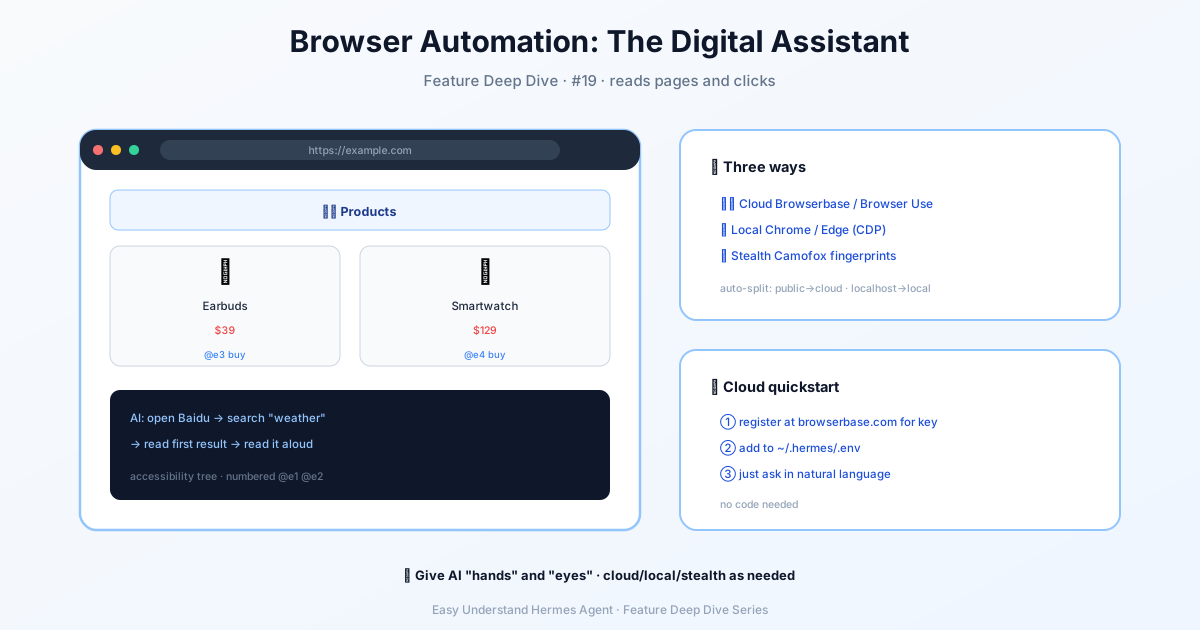
What Can It Do?
- Open web pages — type a URL, and it navigates there automatically
- Click elements — buttons, links, menus, anything interactive
- Fill out forms — usernames, passwords, search terms, shipping addresses
- Extract information — pull text and data straight from the page
Hermes turns every webpage into a “text map” (called an Accessibility Tree). The AI can see where every button and input field sits, then interact with them using simple labels like @e1, @e2, and so on.
Multiple Ways to Run It
1. Cloud Mode (No Local Browser Needed)
- Browser Use — managed Chromium with stealth, residential proxies, CAPTCHA solving, and reusable profiles
- Browserbase — great for sites with anti-bot protection or proxy requirements
- Firecrawl — includes built-in web scraping
Just add your API keys to the config file:
BROWSERBASE_API_KEY=your_key_here
BROWSERBASE_PROJECT_ID=your_project_id
Note that these keys only supply credentials. The active provider is picked in hermes tools → Browser Automation, and once you’ve chosen one, adding or removing a key won’t switch it.
2. Local Mode (Free & Private)
- Camofox — a local anti-detection browser that masks your fingerprint
- Lightpanda — a lightweight headless engine that starts instantly and uses far less memory than Chrome
- Local Chromium — launch with the
agent-browsercommand - Connect your own browser — via CDP protocol, let AI control the Chrome, Brave, Chromium, or Edge you already have open
/browser connectThat single command makes your existing browser obey the AI’s commands.
Built-In Convenience Features
- Session isolation — each task gets its own browser, so nothing interferes
- Auto-cleanup — idle sessions close themselves, saving resources
- Visual analysis — screenshots plus AI recognition to understand page layouts
- Anti-detection — random fingerprints and CAPTCHA handling (via Browser Use or Browserbase)
- Hybrid routing — when a cloud provider is set, private/LAN URLs like
localhostautomatically use a local browser instead, so the cloud never sees them
Special Note for Nous Subscribers
If you have a paid Nous Portal subscription, you can use browser automation directly through the Tool Gateway—no extra API keys needed. For new installs, run:
hermes setup --portalExisting users can select “Nous Subscription” with hermes model or hermes tools.
Summary & Practical Advice
Browser automation is one of Hermes Agent’s most useful features. Whether you’re auto-filling forms, scraping data, or testing websites, it saves you hours of repetitive work.
Pro tip for beginners: Start by connecting your local browser with /browser connect. You’ll watch the AI work step by step in real time, which makes it easy to understand its logic. Once you’re comfortable, switch to cloud mode for 24/7 unattended automation.
If you want the agent to browse as you—with your existing logins and cookies—turn on real profile browsing (browser.use_real_profile: true). It copies your active profile into a snapshot and runs headless in the background. One catch: on Windows you must fully quit the browser first, and on macOS/Linux it’s best to quit too, since a running browser can lock the login databases Hermes needs to copy.
Now go ahead—ask the AI to book a flight, check tomorrow’s weather, or order your favorite coffee. Your new digital assistant is ready to surf.
Keep reading: Hermes Computer Use — Browser automation stops at the page; Hermes Computer Use drives the whole desktop.
📖 Official Docs
This article is based on the official Hermes Agent documentation:Official docs › user-guide/features/browser