Hermes Computer Use: Setup, CUA Driver, Doctor
Hermes Computer Use runs on the CUA driver. Install with `hermes computer-use install`, then run `hermes computer-use doctor` if a click won't land.
Imagine you’re deep in a report, and your AI assistant is quietly reorganizing folders, filling out forms, and scrolling web pages on a “virtual screen” beside you—like an invisible coworker who never interrupts your flow.
Quick answer. Enable Computer Use with
hermes computer-use install, check the install withhermes computer-use status, and diagnose anything that isn’t working withhermes computer-use doctor. Then start a session that has the toolset loaded:hermes -t computer_use chat.
The commands, back to back
| What you want | Command |
|---|---|
| Install the CUA driver (older installs, or an installer that skipped the step) | hermes computer-use install |
| Verify the install | hermes computer-use status |
| Find out why a click or keystroke isn’t landing | hermes computer-use doctor |
| Start a session with Computer Use enabled | hermes -t computer_use chat |
| Enable it in every session | add computer_use to toolsets in ~/.hermes/config.yaml |
What hermes computer-use doctor prints
It runs cua-driver’s structured health_report check and prints one line per check. Your version string appears where this example shows <version>:
$ hermes computer-use doctor
⚠️  cua-driver <version> on darwin: degraded

  ✅ binary_version: cua-driver <version>
  ✅ platform_supported: macOS 26.4.1 (arm64)
  ✅ session_active: MCP session is active.
  ❌ bundle_identity: Process has no CFBundleIdentifier.
      → Run the binary inside CuaDriver.app so TCC grants attribute correctly.
  ✅ tcc_accessibility: Accessibility is granted.
  ✅ tcc_screen_recording: Screen Recording is granted.
  ✅ ax_capability: AX is trusted and reachable.
  ✅ screen_capture_capability: ScreenCaptureKit reachable; 1 display(s) shareable.
Reading it: exit code 0 means the overall status is ok; 1 means degraded or failed (at least one ❌, and the indented hint on that line tells you what to fix); 2 means the cua-driver binary itself isn’t reachable. Add --include CHECK / --skip CHECK to narrow the run, or --json for the raw payload. On Windows and Linux, bundle_identity and the tcc_* checks report skip — those are macOS-only concepts, not failures.
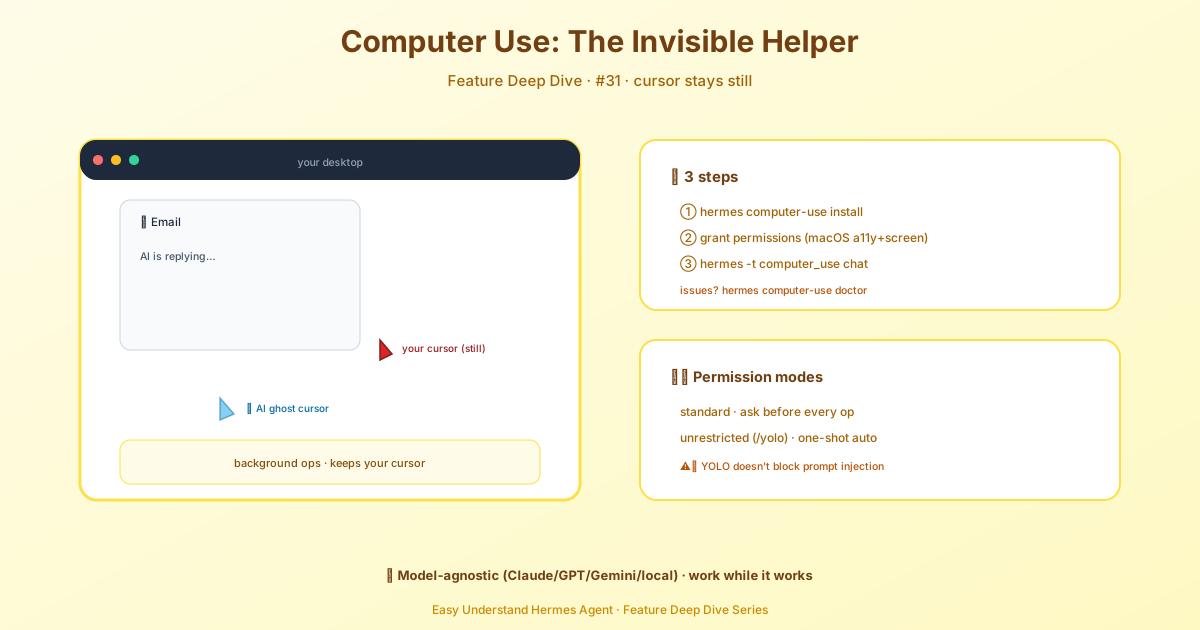
That’s exactly what Computer Use in Hermes Agent does. It lets the AI see your screen content and simulate clicks, typing, scrolling, and dragging—without moving your mouse, stealing keyboard focus, or switching your virtual desktop. You and the AI work side‑by‑side on the same machine, completely independent.
Which AI Models Work?
Almost any model that can call tools—Claude, GPT, Gemini, even local open‑source models. Hermes doesn’t lock you into a proprietary format. No special Anthropic syntax to learn. Just plug in your favorite model and go.
How Does It Pull This Off?
Hermes uses an open‑source driver called cua-driver. It reads on‑screen elements (buttons, input boxes, menus) through accessibility interfaces, then sends simulated actions to the target window. Under the hood, each OS uses its native accessibility layer:
- macOS: AX (Accessibility) — sends events without moving the real cursor
- Windows: UIAutomation — inputs don’t steal focus
- Linux: AT‑SPI (X11 & Wayland) — stays out of your foreground
The core principle: never force a window to the foreground. Curious why that matters? See the no‑foreground contract.
Enable It — Two Ways
Option 1: Direct command line (easiest)
hermes computer-use installThen verify:
hermes computer-use statusOption 2: Interactive setup
hermes toolsSelect 🖱️ Computer Use (macOS/Windows/Linux) from the list—it runs the same installer automatically.
Fresh installs already ship the driver, so on a new setup enabling Computer Use is just a config flip. If you already have cua-driver, Hermes reuses it when it supports the 0.20 runtime contract, and quietly repairs an old or incomplete standard install through the upstream installer.
Post‑Install Permissions
Give your terminal (or Hermes App) a couple of permissions:
- macOS: System Settings → Privacy & Security → enable Accessibility and Screen Recording. Not sure which? Run
hermes computer-use doctor—it tells you exactly what’s missing. - Windows: Local use needs nothing extra. For SSH remote access, follow the Windows‑SSH guide.
- Linux: Set
DISPLAY(X11) orXDG_SESSION_TYPE=wayland(Wayland needs XWayland bridge). Ensure AT‑SPI is running (GNOME/KDE enable it by default).
Start Using It
After install & permissions, launch a chat with the toolset:
hermes -t computer_use chatOr add computer_use to ~/.hermes/config.yaml under toolsets to auto‑enable it every session.
Permission Mode & Browser Login
Hermes maps its existing approval system onto cua‑driver’s immutable daemon mode—so there’s no second permission toggle to remember. The same approve/deny flow you already know applies. Before the AI touches your screen, it asks you first. Safe and simple.
Permission mode and capability manifest approval are launch settings—they can’t change once the runtime starts. For repeatable automation (cron jobs, scheduled research against a signed-in app), bounded mode lets you review a capability manifest once, and anything outside it fails closed.
Destructive actions (click, type, drag, scroll, key, focus_app) go through the same approval gate as dangerous shell commands, and where nobody can answer—cron, single-query, unattended platforms, or any headless run—the action is refused rather than auto-approved (--yolo / /yolo still bypasses).
Browser work—including pages in a signed-in profile—goes through the browser toolset (browser_exec), not computer_use.
Summary & Practical Tips
Bottom line: Computer Use = the AI works on a “background copy” of your screen while you keep doing your thing.
Pro tip: Before your first real task, run hermes computer-use doctor to verify permissions. If clicks aren’t landing, 90% of the time it’s missing Screen Recording or Accessibility access—don’t reinstall, just check the diagnostics. Also, test typing and scrolling in a blank notepad window first. Get comfortable there, then let it loose on real apps.
📖 Official Docs
This article is based on the official Hermes Agent documentation:Official docs › user-guide/features/computer-use