Deliverable Mode — Focus on Output
Deliverable Mode — Focus on Output — easy-to-understand guide based on official docs
Deliverable Mode: Your Agent Hands You the Finished File
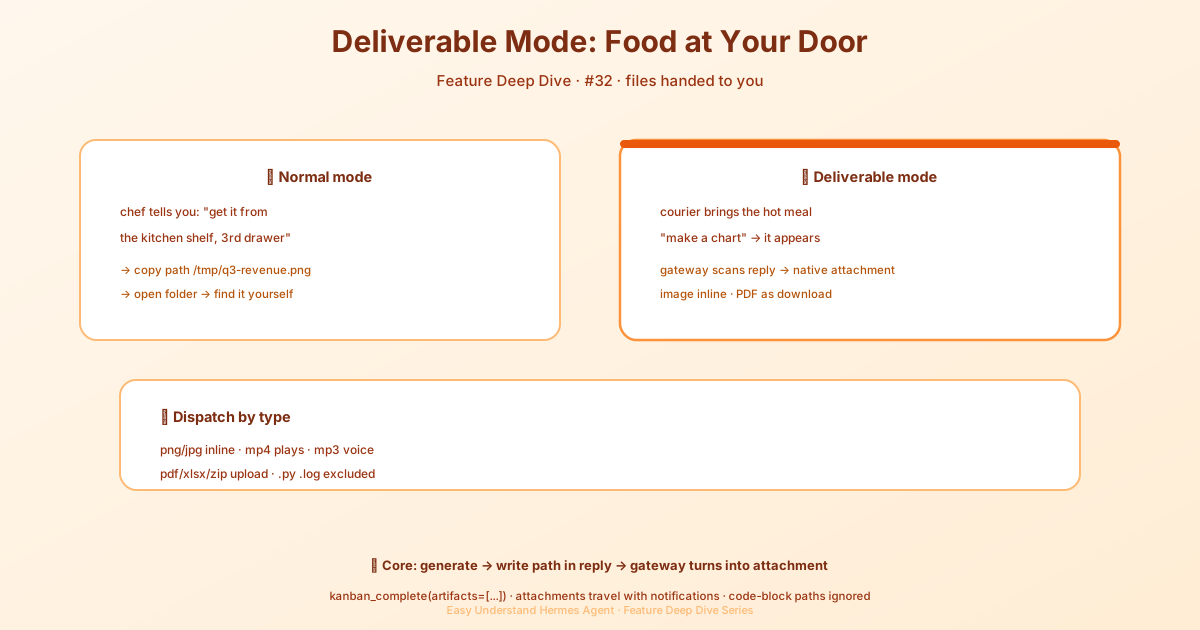
Imagine ordering takeout, and instead of receiving a bag of raw ingredients with a recipe card, the chef walks over and hands you a steaming plate of finished food. That’s the whole idea behind Hermes Agent’s Deliverable Mode. When your agent produces a file—a chart, a PDF, a spreadsheet—it doesn’t just give you a file path to go hunt down. It hands you the finished dish, right in your chat window.
What It Actually Does
When Hermes Agent runs on a chat platform (Slack, Discord, Telegram, and others), every file it generates gets automatically attached to its reply. For example:
- A chart → appears directly as an image
- A PDF report → shows up as a downloadable file
- A table → uploads as an
.xlsxfile
You don’t need to do anything special. The agent simply mentions the absolute path to the file in its response—like ~/.hermes/cache/scratch/q3-revenue.png—and the gateway spots it, extracts it, and sends it to you.
How It Works in Three Steps
-
The agent uses a tool to create the file. For instance, it might use
execute_codeto render a matplotlib chart, or adocxskill to build a Word document, or anxlsxskill for spreadsheets, or apdfskill for reports. -
The gateway scans the reply for file paths. It looks for paths starting with
~/.hermes/cache/scratch/...or~/...and ending with a supported file extension. Paths inside code blocks are ignored, so your code examples stay clean. -
The gateway dispatches by file type:
- Images → embedded directly in the chat
- Videos → embedded for playback (if the platform supports it)
- Audio → sent as a voice or audio attachment
- Everything else → uploaded as a regular file
Supported File Formats
| Category | Examples | How It’s Sent |
|---|---|---|
| Images | .png .jpg .gif .svg |
Displayed inline |
| Video | .mp4 .mov .mkv |
Embedded playback |
| Audio | .mp3 .wav .m4a |
Voice attachment |
| Documents | .pdf .docx .txt .md |
File upload |
| Data | .xlsx .csv .json |
File upload |
| Presentations | .pptx .ppt |
File upload |
| Archives | .zip .rar .7z |
File upload |
Note: Source files like .py and .log are not auto-sent. That’s intentional—it keeps the agent from spamming you with code files. Want to share code? Use a code block instead.
How to Get the Agent to Produce Files
The agent won’t generate files on its own by default. You need to nudge it.
Method 1: Just ask in the conversation
“Make a chart comparing the results and send it to me” “Export the data as a CSV”
Method 2: Set project-level preferences
Add your preferences to the project’s AGENTS.md, CLAUDE.md, or .cursorrules file. Or add a rule to your global config at ~/.hermes/SOUL.md. You can even define a “persona preset” in ~/.hermes/config.yaml and switch between them anytime with /personality.
The Core Mechanism in One Sentence
The agent saves a file to an absolute path (like ~/.hermes/cache/scratch/q3-revenue.png), mentions that path in plain text in its reply, and the gateway handles the rest. That’s it.
In short: Deliverable Mode changes the AI’s job from “telling you where the file is” to “giving you the file directly.” No more hunting through folders. Practical tip: Next time you ask the agent to analyze data, just say, “Turn the results into a chart and send it to me.” It will generate the image and deliver it instantly—try it once, and you’ll never go back.
📖 Official Docs
This article is based on the official Hermes Agent documentation:Official docs › user-guide/features/deliverable-mode