SimpleX — Privacy Chat Without IDs
SimpleX — Privacy Chat Without IDs — easy-to-understand guide based on official docs
SimpleX — Privacy Chat Without IDs
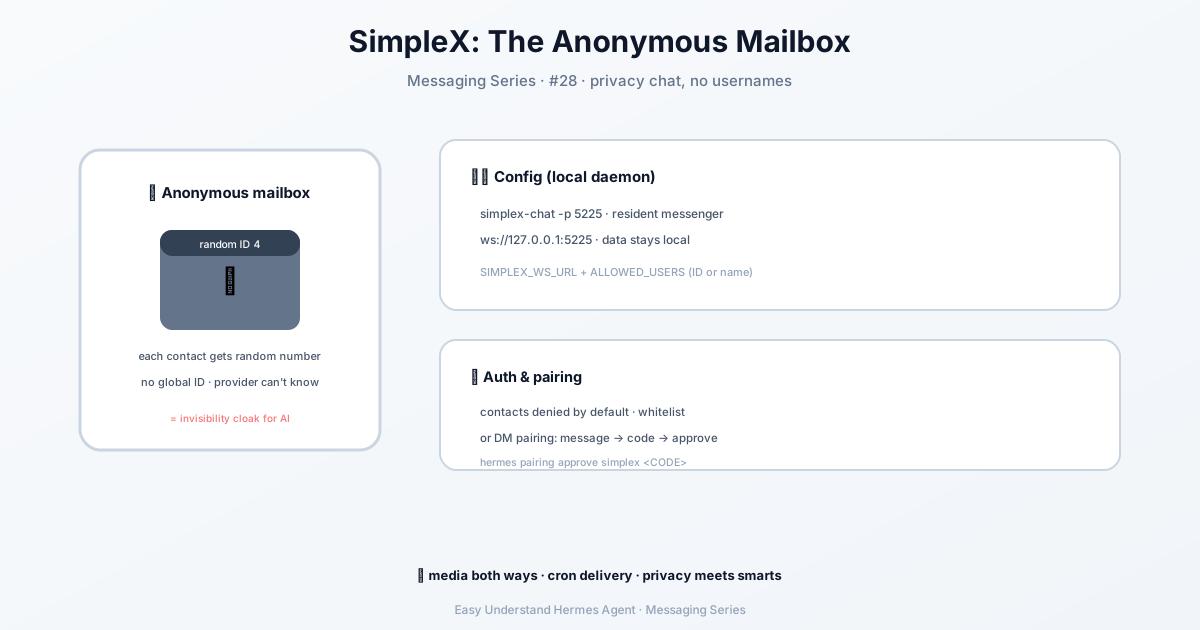
If you’ve ever used a messaging app, you’ve probably noticed something: every single one assigns you an ID. A phone number, a username, a random string of characters — something that identifies you across the network. SimpleX flips that idea on its head. It’s a private, decentralised messenger with no persistent user IDs at all. Every contact is identified by an opaque internal ID generated at connection time. That’s it. No phone numbers, no email addresses, no usernames that follow you around.
For Hermes Agent, this makes SimpleX one of the most privacy-preserving channels you can use. And the latest adapter update makes it easier than ever to get started.
What’s New in the SimpleX Adapter
The newest documentation brings several improvements:
- Flexible contact matching —
SIMPLEX_ALLOWED_USERSnow accepts either numericcontactIds or display names. Mix and match:SIMPLEX_ALLOWED_USERS=4,aliceworks fine. - Group chat support — The bot can now participate in groups, but only if you explicitly opt in. No more accidentally processing everyone’s messages.
- Native attachments — Images, voice notes, and files flow in both directions, rendered inline in the SimpleX client.
- DM pairing — A simpler authorization flow: just message the bot and approve the pairing code it sends back.
- Standalone sending — You can use
hermes sendwith SimpleX even when the gateway isn’t running.
Getting Started
First, make sure you have the simplex-chat CLI installed and running as a daemon. You’ll also need the Python websockets package (pip install websockets).
Download the latest binary from the simplex-chat GitHub releases page:
curl -L https://github.com/simplex-chat/simplex-chat/releases/latest/download/simplex-chat-ubuntu-22_04-x86_64 -o simplex-chat
chmod +x simplex-chat
Then start the daemon:
simplex-chat -p 5225It listens on WebSocket at ws://127.0.0.1:5225 by default.
Configuring Hermes
The easiest path is the setup wizard:
hermes gateway setupPick SimpleX Chat and follow the prompts.
Prefer environment variables? Add these to ~/.hermes/.env:
SIMPLEX_WS_URL=ws://127.0.0.1:5225
SIMPLEX_ALLOWED_USERS=<contact-id-1>,<contact-id-2>
SIMPLEX_HOME_CHANNEL=<contact-id>
Here’s what each variable does:
| Variable | Required | Description |
|---|---|---|
SIMPLEX_WS_URL |
Yes | WebSocket URL of the simplex-chat daemon |
SIMPLEX_ALLOWED_USERS |
Recommended | Comma-separated allowlist. Accepts numeric contactId or display names |
SIMPLEX_ALLOW_ALL_USERS |
Optional | Set true to allow every contact (use carefully) |
SIMPLEX_AUTO_ACCEPT |
Optional | Auto-accept incoming contact requests (default: true) |
SIMPLEX_GROUP_ALLOWED |
Optional | Comma-separated group IDs, or * for any group. Omit to ignore groups |
SIMPLEX_HOME_CHANNEL |
Optional | Default contact/group ID for cron job delivery |
SIMPLEX_HOME_CHANNEL_NAME |
Optional | Human label for the home channel |
HERMES_SIMPLEX_TEXT_BATCH_DELAY |
Optional | Quiet-period seconds (default: 0.8) to batch rapid-fire messages |
Authorization: Who Can Talk to Your Bot?
By default, all contacts are denied. You have two options:
- Set
SIMPLEX_ALLOWED_USERS— a comma-separated list of contact IDs and/or display names. - Use DM pairing — send any message to the bot. It replies with a pairing code. Approve it with:
hermes pairing approve simplex <CODE>To find your contact ID, open a conversation with your agent in the SimpleX UI. The numeric ID appears in session logs. Or just use the display name — both work.
Group Chats: Opt In Explicitly
By default, the adapter ignores group messages. This is intentional — otherwise your bot would process every member’s traffic. To enable groups:
SIMPLEX_GROUP_ALLOWED=12,34          # specific group IDs
# or
SIMPLEX_GROUP_ALLOWED=*              # any group the bot is in
Address groups with a group: prefix, like simplex:group:12.
Sending Messages with hermes send
SimpleX works as a standalone send target — the daemon must be running, but a live gateway isn’t required for plain text:
hermes send --to simplex:alice "hello"          # DM by display name
hermes send --to simplex:group:12 "hello"       # group by numeric ID
hermes send --to simplex "hello"                # SIMPLEX_HOME_CHANNEL
While the gateway runs, the adapter refreshes the channel directory every 5 minutes, so hermes send --list shows your contacts by name.
Attachments: Native and Inline
The adapter supports native SimpleX attachments in both directions:
- Inbound — images, voice notes, and files arrive via the daemon’s XFTP flow and surface as
MessageEvent.media_urls. - Outbound —
send_image_file,send_voice,send_document, andsend_videoall use structured sends. The receiving client renders images and voice notes inline — no downloads needed.
You can even embed MEDIA:/path/to/file tags in plain text replies. The adapter strips the tag and sends the file as a voice note (audio extensions) or document.
Cron Jobs and Privacy Notes
Using SimpleX with cron jobs is straightforward:
cronjob(
    action="create",
    schedule="every 1h",
    deliver="simplex",          # uses SIMPLEX_HOME_CHANNEL
    prompt="Check for alerts and summarise."
)
And the privacy story is strong:
- SimpleX never reveals phone numbers or email addresses — contacts use opaque IDs
- The connection between Hermes and the daemon is a local WebSocket (
ws://127.0.0.1:5225) — no data leaves your machine - Messages are end-to-end encrypted by the SimpleX protocol before reaching the daemon
Troubleshooting tip: If you see “Cannot reach daemon”, make sure simplex-chat -p 5225 is still running and the WebSocket URL in your config matches.
SimpleX gives you one of the most private messaging experiences available — and now Hermes makes it easy to plug in. No IDs, no phone numbers, no compromises.
📖 Official Docs
This article is based on the official Hermes Agent documentation:Official docs › user-guide/messaging/simplex