Teams Meetings — Auto Meeting Notes
Teams Meetings — Auto Meeting Notes — easy-to-understand guide based on official docs
Imagine having a diligent assistant who silently joins every meeting, takes perfect notes, and then files them away in your project tracker — without you ever having to ask. That’s exactly what Hermes Agent’s Teams Meetings pipeline does for your Microsoft Teams calls.
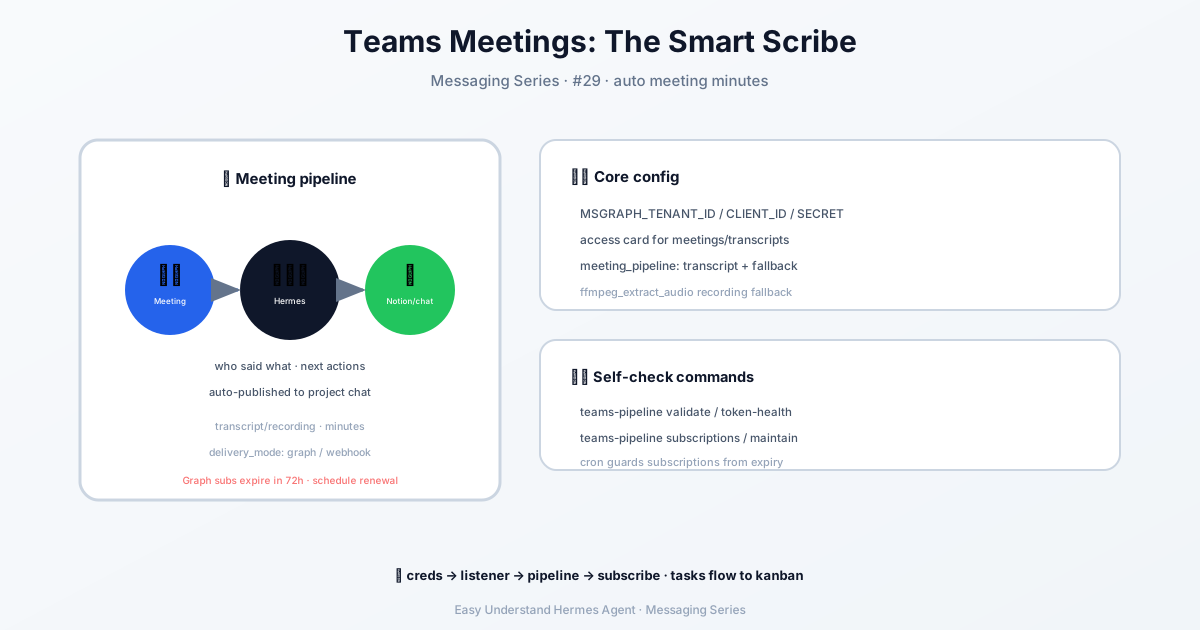
What Does This Actually Do?
When you enable this feature, Hermes automatically:
- Watches for new meeting events via Microsoft Graph
- Grabs the transcript (the text version of your meeting) if one exists
- If no transcript is available, it downloads the recording and uses speech-to-text to convert it
- Creates a structured summary and sends it where you want — like Notion, Linear, or back into Teams
You don’t need to click anything. The whole process runs in the background.
Step 1: Add Your Microsoft Graph Credentials
First, you need to tell Hermes who it’s working for. Open your .env file (usually at ~/.hermes/.env) and add:
MSGRAPH_TENANT_ID = your-tenant-id
MSGRAPH_CLIENT_ID = your-client-id
MSGRAPH_CLIENT_SECRET = your-client-secret
These are like your app’s ID badge — they let Hermes access your meeting data securely.
Step 2: Turn On the Webhook Listener
A webhook is just a fancy way of saying “call me when something happens.” Hermes listens for meeting events through a special listener. Add these to your .env:
MSGRAPH_WEBHOOK_ENABLED = true
MSGRAPH_WEBHOOK_PORT = 8646
MSGRAPH_WEBHOOK_CLIENT_STATE = your-random-secret
MSGRAPH_WEBHOOK_ACCEPTED_RESOURCES = communications/onlineMeetings
The listener will expose two URLs:
https://your-public-domain.com/msgraph/webhook— where Graph sends notificationshttps://your-public-domain.com/health— a simple “I’m alive” check
You’ll need a public HTTPS address pointing to your Hermes server. If you’re testing locally, tools like ngrok can help.
Step 3: Configure Where Summaries Go
You can send meeting summaries to different places. The most common is posting back into a Teams channel. You’ll configure this in your config.yaml file — think of it as telling Hermes where to deliver the notes and how detailed they should be.
Step 4: Enable the Plugin
Finally, activate the pipeline plugin:
hermes plugins enable teams_pipelineOr add this to your config.yaml:
plugins:
  enabled: [teams_pipeline]
Then run hermes gateway setup and choose Teams Meetings — it’ll walk you through everything.
Useful Commands for Daily Use
Once it’s running, you can check on things with:
hermes teams-pipeline validate          # Check your setup
hermes teams-pipeline list              # See recent meetings
hermes teams-pipeline maintain-subscriptions  # Keep webhooks fresh
Summary & Practical Tip
The Teams Meetings pipeline turns your messy, forgettable meetings into clean, searchable notes — automatically. It’s like having a personal scribe who never sleeps.
Practical tip: Start with just one or two meetings per week. Use the validate command first to catch any credential or URL issues before you rely on it for important calls. And remember — if you want recording-based summaries, make sure ffmpeg is installed on your server. Test the whole flow with a short internal meeting first, then scale up.
📖 Official Docs
This article is based on the official Hermes Agent documentation:Official docs › user-guide/messaging/teams-meetings