Telegram — The Most Popular Bot Platform
Telegram — The Most Popular Bot Platform — easy-to-understand guide based on official docs
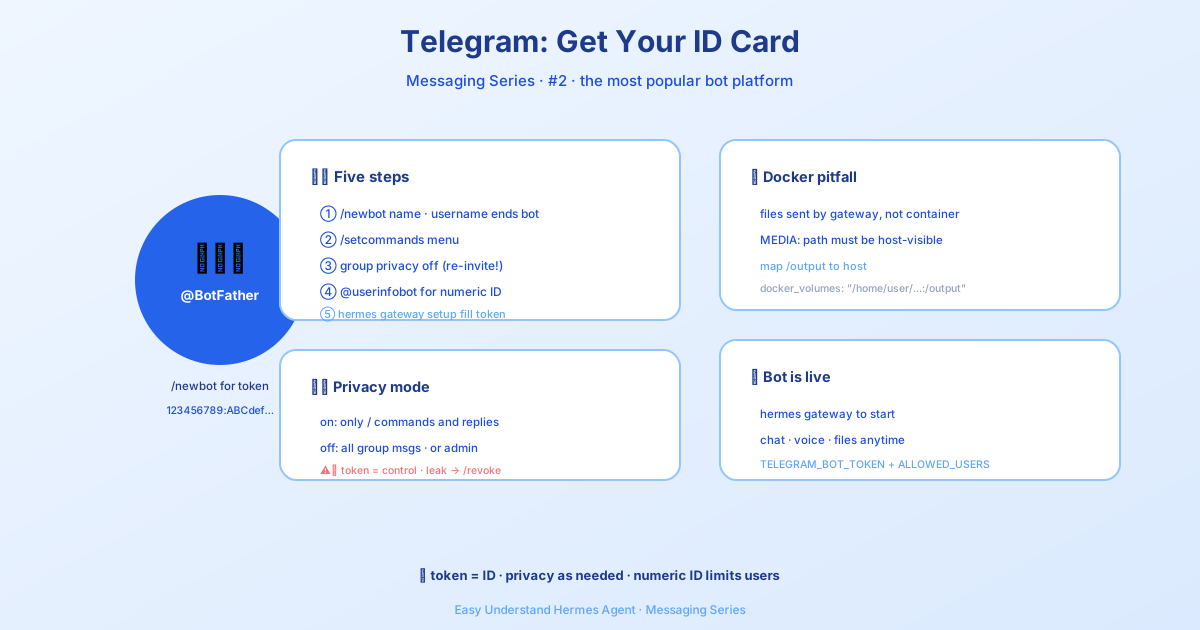
Telegram — The Most Popular Bot Platform
If you’ve ever used Telegram, you know it’s not just another messaging app — it’s a full-blown platform. And for Hermes Agent, it’s the perfect home. Once you connect your agent to Telegram, you can chat with it from your phone, your laptop, or anywhere else. Send a voice memo and it gets transcribed automatically. Get scheduled task results delivered right to your chat. Even invite your agent into group conversations.
The integration is built on the solid python-telegram-bot library, and it handles text, voice, images, and file attachments. Let’s get you set up.
Quick Setup with QR (Dashboard and Desktop App)
The Messaging → Telegram page in the dashboard and the desktop app has a Create with QR button. Scan the code (or open the link) in Telegram; Hermes creates the bot for you, detects your Telegram user ID, writes TELEGRAM_BOT_TOKEN and TELEGRAM_ALLOWED_USERS into your profile’s .env, and restarts the gateway. If you prefer to create the bot yourself, follow the manual steps below.
Step 1: Create Your Bot with BotFather
Every Telegram bot needs an API token, and you get that from @BotFather — Telegram’s official bot manager.
- Open Telegram and search for @BotFather, or go straight to t.me/BotFather
- Send
/newbot - Pick a display name — anything you like, like “Hermes Agent”
- Choose a username — this must be unique and end with
bot(e.g.,my_hermes_bot) - BotFather replies with your API token. It looks like this:
123456789:ABCdefGHIjklMNOpqrSTUvwxYZKeep that token secret! Anyone who has it can control your bot. If it ever leaks, revoke it immediately with
/revokein BotFather.
Step 2: Customize Your Bot (Optional but Recommended)
Message @BotFather and use these commands to polish your bot:
| Command | What it does |
|---|---|
/setdescription |
The “What can this bot do?” text users see before they start chatting |
/setabouttext |
Short text on the bot’s profile page |
/setuserpic |
Upload an avatar for your bot |
/setcommands |
Define the command menu (the / button in chat) |
/setprivacy |
Control whether the bot sees all group messages |
For /setcommands, a good starting set:
help - Show help information
new - Start a new conversation
sethome - Set this chat as the home channel
Online/Offline Status Indicator (Optional)
Telegram bots don’t have a green “online” dot like user accounts. The closest thing is the bot’s short description — the line under its name on the profile page.
Enable status_indicator and Hermes will set that description to Online when connected and Offline on a clean shutdown:
gateway:
  platforms:
    telegram:
      extra:
        status_indicator: true
        status_online: "🟢 Online"
        status_offline: "🔴 Offline"
A few notes:
- The short description is global — everyone sees the same status.
- Only a clean shutdown (like
/stop) writes “Offline”. A hard crash leaves the last-known status. - It’s off by default since it changes your bot’s public profile.
Cold-Boot Pending Queue (Optional)
By default, Hermes drops any messages that piled up in Telegram’s queue while the gateway was offline — the next boot clears them silently, with no log and no retry. That’s fine for always-on servers, but not for a desktop that shuts down overnight.
Set drop_pending_on_cold_boot: false to receive that backlog in order on startup instead:
platforms:
  telegram:
    extra:
      drop_pending_on_cold_boot: false
A few notes:
- The default is
true, so nothing changes unless you opt in. - Brief network blips (with the process still running) always keep the queue.
- After a crash, a preserved queue can redeliver a message the crashed instance had partly handled, so time-sensitive commands sent during a long outage will run on boot.
Command Menu Priority and Cap (New)
Hermes automatically registers its command menu when the Telegram gateway starts. The default cap is 60 commands — enough for all built-ins plus common skills. But if you have specific commands that must stay visible, you can prioritize them:
platforms:
  telegram:
    extra:
      command_menu:
        max_commands: 60
        priority_mode: prepend  # prepend | append | replace
        priority:
          - my_plugin_command
- songseeprepend: your commands first, then Hermes defaultsappend: Hermes defaults first, then yoursreplace: use only your list for priority ordering
Priority is applied before the cap, so a prioritized skill command always gets a slot — even if core commands alone would fill the menu. Previously, skills were trimmed alphabetically, so late-alphabet skills could never appear. That’s fixed now. Telegram allows up to 100 BotCommands, but large command payloads can fail, so Hermes defaults to 60 for reliability and clamps configured values to 1..100; use /commands for the full command list.
Inline Command Picker: Search Everything (No Cap)
The / menu is capped, but Telegram’s inline mode is not. Once enabled, type @yourbotname followed by a search term in any chat:
@yourbotname plan            → tap the /plan result
@yourbotname plan migrate auth to OIDC   → sends /plan migrate auth to OIDC
@yourbotname pdf             → finds skills matching "pdf"
The first word filters the catalog; everything after becomes the command’s argument. Tapping a result sends the command as a normal message from you.
One-time setup: inline mode is off by default. Enable it in @BotFather with /setinline and pick a placeholder like “Search commands and skills…”. Until then, the picker stays inert.
Results are only served to users on your gateway allowlist — unauthorized users get an empty list, so your skill catalog stays private.
Step 3: Privacy Mode
This is where things get interesting for group chats. Head over to the docs to learn how to control whether your bot sees all group messages or only ones that mention it. The short version: with privacy mode on, your bot only sees commands and mentions — cleaner and quieter. With it off, it sees everything.
Observe Group Chatter Without Auto-Replying
For OpenClaw/Yuanbao-style group behavior, you can let the bot see ordinary group messages but only respond when directly triggered. Set require_mention: true together with observe_unmentioned_group_messages: true, and use the same chat IDs in both allowed_chats and group_allowed_chats — unmentioned messages from those chats are appended to the shared session as observed context, and a later mention or reply can use that context. This requires Telegram to deliver ordinary group messages to the gateway, so disable BotFather privacy mode or promote the bot to group admin.
Step 4: Find Your User ID
Hermes Agent uses numeric Telegram user IDs to control access. Your user ID is not your username — it’s a number like 123456789. Message @userinfobot and it instantly replies with your user ID (or use @get_id_bot as another reliable option). Save this number; you’ll need it for the next step.
Step 5: Configure Hermes
Run hermes gateway setup and select Telegram when prompted — the wizard asks for your bot token and allowed user IDs, then writes the configuration for you. Or configure manually by adding the following to ~/.hermes/.env:
TELEGRAM_BOT_TOKEN=123456789:ABCdefGHIjklMNOpqrSTUvwxYZ
TELEGRAM_ALLOWED_USERS=123456789    # Comma-separated for multiple users
Then start the gateway with hermes gateway. The bot should come online within seconds — send it a message on Telegram to verify.
Sending Generated Files from Docker-backed Terminals
If your terminal backend is docker, keep in mind that Telegram attachments are sent by the gateway process, not from inside the container. That means the final MEDIA:/... path must be readable on the host where the gateway is running. A common pitfall: the agent writes a file inside Docker to /workspace/report.txt, the model emits MEDIA:/workspace/report.txt, and delivery fails because that path only exists inside the container. Mount a host directory (for example /home/user/.hermes/cache/documents:/output), write files to /output/... inside Docker, and emit the host-visible path in MEDIA:.
Telegram remains the most popular bot platform for a reason: it’s powerful, flexible, and now with Hermes, it’s your agent’s new favorite hangout.
📖 Official Docs
This article is based on the official Hermes Agent documentation:Official docs › user-guide/messaging/telegram