WeCom Callback Mode — Custom Apps
WeCom Callback Mode — Custom Apps — easy-to-understand guide based on official docs
WeCom Callback Mode — Custom Apps
If you’ve been following our Hermes Agent series, you already know about the WeCom Bot integration — the quick and easy way to get Hermes chatting in your group conversations. Today, we’re leveling up. Let’s talk about WeCom Callback Mode for self-built apps.
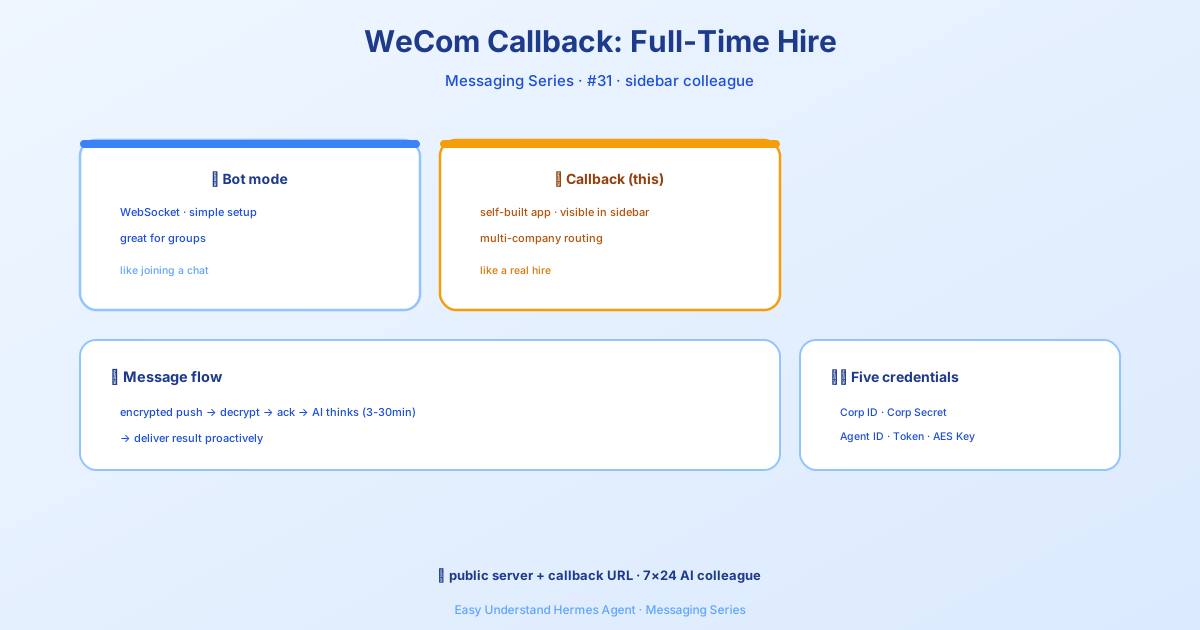
Think of it this way: the bot mode is like having a friend join your group chat. Callback mode is like giving that friend their own office, complete with a nameplate on the door. Your users will see Hermes as a first-class app in their WeCom sidebar, ready to handle requests with the full weight of your enterprise setup.
Why Choose Callback Mode?
The callback approach is perfect for organizations that need:
- A dedicated app presence in WeCom (not just a group bot)
- Support for multiple corporate entities (subsidiaries, departments)
- Tighter integration with WeCom’s native app ecosystem
How It Works
Here’s the flow in plain English:
- You create a self-built app in the WeCom Admin Console
- WeCom sends encrypted messages to your HTTP callback endpoint
- Hermes decrypts and queues the message for the agent
- Hermes immediately acknowledges receipt (silently — no spam for the user)
- The agent processes the request (usually 3–30 minutes)
- The reply is delivered proactively via WeCom’s message API
The user experience is simple: they send a message, and when the agent is done, the answer arrives. No polling, no waiting on their end.
What You’ll Need
Before we dive in, gather these:
- A WeCom enterprise account with admin access
- A publicly reachable server (or a tunnel like ngrok)
- The
aiohttpandhttpxPython packages (they’re included in the default install)
Step-by-Step Setup
1. Create Your Self-Built App
Head to the WeCom Admin Console and navigate to Applications → Create App. You’ll need to note down:
- Corp ID — shown at the top of the admin console
- Corp Secret — create one in the app settings
- Agent ID — found on the app’s overview page
Then, under Receive Messages, configure your callback URL:
- URL:
http://YOUR_PUBLIC_IP:8645/wecom/callback - Token: Generate a random one (WeCom provides this)
- EncodingAESKey: Generate a key (again, WeCom provides it)
2. Set Up Environment Variables
Add these to your .env file:
WECOM_CALLBACK_CORP_ID=your-corp-id
WECOM_CALLBACK_CORP_SECRET=your-corp-secret
WECOM_CALLBACK_AGENT_ID=1000002
WECOM_CALLBACK_TOKEN=your-callback-token
WECOM_CALLBACK_ENCODING_AES_KEY=your-43-char-aes-key

# Optional
WECOM_CALLBACK_PORT=8645
WECOM_CALLBACK_ALLOWED_USERS=user1,user2
3. Start the Gateway
hermes gatewayThat’s it. The callback adapter spins up an HTTP server on the configured port. WeCom will verify your URL with a GET request, then start sending messages via POST.
Multi-App Routing
Running multiple departments or subsidiaries? The apps list in config.yaml has you covered:
platforms:
  wecom_callback:
    enabled: true
    extra:
      host: "0.0.0.0"
      port: 8645
      apps:
        - name: "dept-a"
          corp_id: "ww_corp_a"
          corp_secret: "secret-a"
          agent_id: "1000002"
          token: "token-a"
          encoding_aes_key: "key-a-43-chars..."
        - name: "dept-b"
          corp_id: "ww_corp_b"
          corp_secret: "secret-b"
          agent_id: "1000003"
          token: "token-b"
          encoding_aes_key: "key-b-43-chars..."
Users are scoped by corp_id:user_id to prevent cross-corp collisions. When someone sends a message, the adapter knows exactly which app they belong to and routes the reply through the correct access token.
Access Control
Keep things secure with a simple allowlist:
# Allow specific users
WECOM_CALLBACK_ALLOWED_USERS=zhangsan,lisi,wangwu

# Or open it up
WECOM_CALLBACK_ALLOW_ALL_USERS=true
What to Watch Out For
A few honest limitations:
- No streaming — replies arrive as complete messages, not token-by-token
- No typing indicators — the callback model doesn’t support typing status
- Text only for input — images, files, and voice input aren’t implemented yet (though the agent can send images, documents, and video outbound)
- Response latency — agent sessions take 3–30 minutes, so users wait for the full reply
Quick Troubleshooting
Signature verification failing? This is almost always a token mismatch. Re-copy both the Token and EncodingAESKey from the WeCom admin console and make sure they match exactly what’s in your Hermes configuration.
Ready to Go?
Run hermes gateway setup and pick WeCom Callback for a guided walkthrough. It’s the perfect choice when you need a proper app presence in WeCom with multi-corp support. Your users will appreciate the polished experience, and you’ll appreciate the clean architecture.
Happy building!
📖 Official Docs
This article is based on the official Hermes Agent documentation:Official docs › user-guide/messaging/wecom-callback