SSH Remote OAuth Sign-In
SSH Remote OAuth Sign-In — easy-to-understand guide based on official docs
SSH Remote OAuth Sign-In: Install Profiles Without Passwords
Think of this like using your house key to open a friend’s garage door—except the key is your SSH connection, and the garage door is a private code repository that needs your permission to enter.
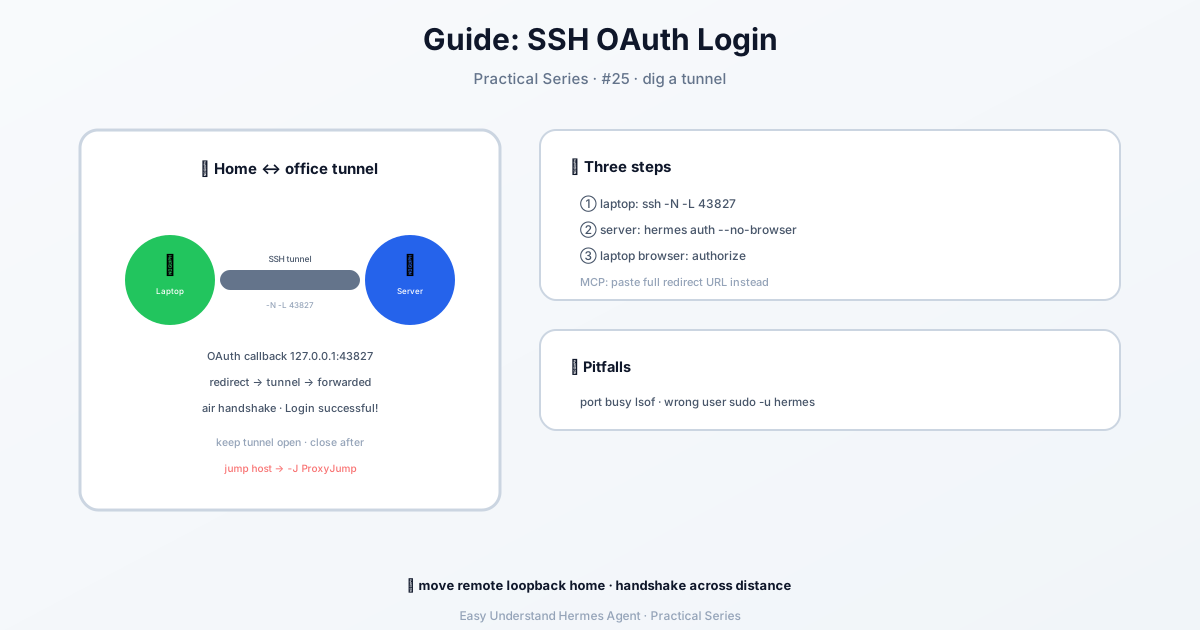
What’s Happening Here?
When you run hermes profile install, Hermes Agent needs to fetch a profile (a set of instructions and tools) from a remote Git repository. But many Git servers (like GitHub, GitLab, or your company’s internal server) require you to prove who you are before letting you download anything.
Normally, you’d have to type a username and password, or set up a personal access token. That’s a hassle. SSH Remote OAuth Sign-In lets Hermes use your existing SSH key (which you already use to securely connect to servers) to automatically sign you in for that one-time download. No extra passwords, no copying tokens.
The Two Commands You’ll Actually Use
Here’s the magic. You can install a profile using either an SSH-style URL or a standard HTTPS URL.
Option 1: SSH URL (like GitHub)
hermes profile install git@github.com:you/research-bot.gitgit@github.com:tells Hermes: “Use my SSH key to talk to GitHub.”you/research-bot.gitis the path to your profile repository.
Option 2: HTTPS URL (for company servers or GitLab)
hermes profile install https://git.example.com/team/research-bot.git- Hermes will detect that it’s an HTTPS link, but because you’ve already set up SSH on your machine, it will automatically try to use your SSH credentials for the OAuth handshake. No prompt, no extra login screen.
How It Works (Without the Techy Weirdness)
- You run the command – Hermes sees the URL and knows it needs to download a profile.
- Hermes checks your SSH keys – It looks for your default key (usually
~/.ssh/id_rsaorid_ed25519). - It sends a “sign-in request” – Instead of asking you for a password, it uses your SSH key as proof of identity to the Git server.
- The server says “OK, you’re you” – The server grants temporary access just for that download.
- Profile installs – The files are pulled, and the session ends. No stored passwords, no lingering tokens.
Why This Is Great for Beginners
- No more “token expired” headaches – You set up SSH once, and it works forever.
- One less password to remember – You never type your Git password into Hermes.
- Safer – Your password never touches Hermes; only your encrypted key is used.
- Works for private repos – If your profile is in a private repository, this sign-in method unlocks it cleanly.
A Quick Checklist Before You Try It
- You have an SSH key on your computer (run
ls ~/.sshto check). - You’ve added that key to your Git server (GitHub → Settings → SSH Keys).
- You know the exact URL of your profile repository.
If you don’t have an SSH key yet, just run:
ssh-keygen -t ed25519 -C "your_email@example.com"Then follow the prompts. After that, you’re ready.
A Note on Other Providers
Not every sign-in works the same way. Some providers skip the SSH tunnel entirely:
- Grok (
xai-oauth), ChatGPT Plus/Pro (openai-codex), MiniMax, and Nous Portal use a device code flow — you just open a printed URL in any browser and Hermes waits for approval. No tunnel needed. - Claude Pro/Max (
anthropic) uses a paste-the-code flow. - OpenRouter switches to a headless flow over SSH and asks you to paste the code shown in the browser.
- ChatGPT Plus/Pro (
openai-codex) defaults to device code, but if you opt into the browser PKCE flow with--browserorauth.codex_login_flow: browser, it uses port1455and does need a tunnel when Hermes is remote.
If your provider isn’t in this list, you don’t need a tunnel.
Final Thoughts
SSH Remote OAuth Sign-In is like a VIP pass for your code downloads. It removes the friction of logging in every time you want to install a profile. Once you’ve set up your SSH key, the hermes profile install command just works—whether you’re using a GitHub-style link or a company HTTPS link.
Practical tip: Always use the SSH URL (git@...) when you can. It’s faster, more secure, and less likely to trigger extra login screens. But if you only have an HTTPS link, don’t worry—Hermes will still handle the OAuth dance for you in the background. Just sit back and let the key do the talking.
📖 Official Docs
This article is based on the official Hermes Agent documentation:Official docs › guides/oauth-over-ssh