Hermes v2026.7.1 Update: Zero P0/P1, Multi-Model Reasoning & Self-Verification
Hermes v2026.7.1 (2026-07-01) update: Hermes Agent v0.18.0 (2026.7.1) — The Ju
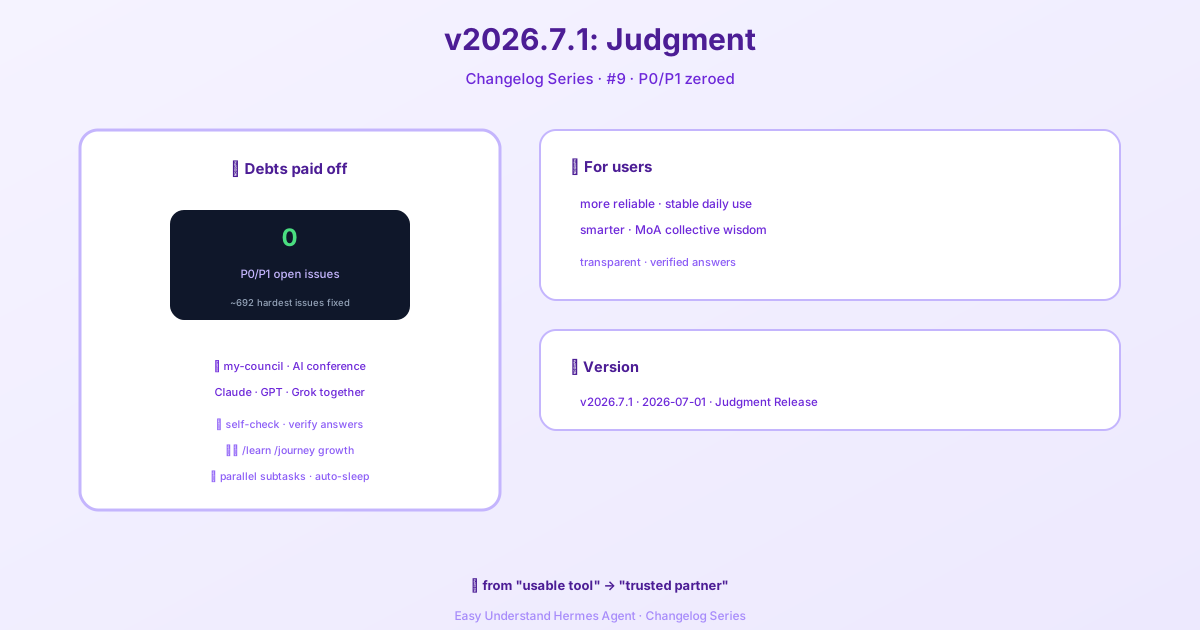
Hermes v2026.7.1 Update: Zero P0/P1, Multi-Model Reasoning & Self-Verification
Hey there, Hermes fans! We’re back with another exciting update. This time, we’re diving deep into something that makes Hermes truly special: multi-model reasoning. Think of it like having a team of specialists working on your tasks, not just one generalist. Let’s break down what’s new and how you can take full control.
The Big Idea: Two Kinds of Brains
Hermes now uses two distinct types of model slots, and understanding this is key to unlocking its full potential.
- Main Model: This is your agent’s primary brain. Every user message, every tool call, and every streamed response flows through this model. It’s the workhorse that does the heavy lifting.
- Auxiliary Models: These are the smaller, specialized sidekicks. Hermes offloads specific jobs to them, like:
- Compressing long conversations to save context.
- Analyzing images (vision).
- Summarizing web pages.
- Scoring approval requests.
- Routing MCP tools.
- Generating session titles.
- Searching for skills.
Each of these 11 auxiliary tasks has its own slot, and you can override them independently. This is huge for optimizing speed and cost.
Getting Started: The Fastest Path
If you’re new, the quickest way to get going is with the Nous Portal. It gives you access to 300+ models under one subscription. On a fresh install, just run:
hermes setup --portalThis logs you in and sets Nous as your provider in one command. You can inspect what’s wired up with hermes portal info. As a bonus, portal subscribers get 10% off token-billed providers.
The Models Page: Your Control Center
Open the dashboard and click Models in the sidebar. You’ll see two main sections:
- Model Settings: The top panel where you assign models to slots.
- Usage Analytics: Ranked cards showing every model that ran a session, with token counts, cost, and capability badges.
The top card is your Model Settings panel. The main row always shows what the agent will spin up for new sessions. Click Change to open the picker.
Setting Your Main Model
The picker dialog has two columns:
- Left: Shows only the providers you’ve authenticated with (API key set, OAuth’d, or custom endpoint). If a provider is missing, head to Keys to add its credential.
- Right: Shows the curated model list for the selected provider. These are the agentic models Hermes recommends, not the raw
/modelsdump (which on OpenRouter includes 400+ models including TTS and image generators).
Pick a model, hit Switch, and Hermes writes it to your config.yaml. Important: This applies to new sessions only. To hot-swap the current chat, use the /model slash command inside it.
Mid-Session Switches: A Word of Caution
When you switch models inside an active session, Hermes estimates whether your next message will trigger context compression. If the session is near the new model’s window limit, you’ll get a warning. The switch applies immediately, but compression runs on the first user message after the switch.
Pro Tip: Mid-session switches reset the prompt cache. This means the next message re-reads the entire conversation at full input-token price instead of the cached (75–90% discounted) rate. On a long session, this one-time re-read can be costly. Switch when you need to, but prefer doing it early in a conversation.
Unattended Data-Training Tiers
Some models, like muse-spark-1.2-contributor, are discounted because the vendor may train on your data. Interactive selection always shows a confirmation prompt. However, non-interactive paths (like Kanban workers) fail closed because they can’t ask. If you’re okay with this, record a persistent acknowledgement:
hermes config set security.allow_data_training_tiers_noninteractive trueHermes still prints the full data-policy warning on every unattended startup for audit trails. Revoke it with:
hermes config unset security.allow_data_training_tiers_noninteractiveFine-Tuning Your Auxiliary Models
Click Show auxiliary to reveal the 11 task slots. Every auxiliary task defaults to auto, meaning Hermes tries your main model for that job too. If that fails, it follows a fallback chain. Override a specific task when you want a cheaper or faster model for a side-job. This is where you can really optimize your setup for both performance and cost.
That’s it for this update! We’re thrilled about the flexibility and control these new model configurations bring. Stay tuned for more, and happy building!
📖 Official Docs
This article is based on the official Hermes Agent documentation:GitHub ›/releases/tag/v2026.7.1