Teams Meeting Pipeline: Keeping Your Meeting Bot Alive
Teams Meeting Pipeline — easy-to-understand guide based on official docs
Teams Meeting Pipeline: Keeping Your Meeting Bot Alive
So you’ve enabled the Teams Meeting Pipeline and your bot is starting to handle meetings. Now comes the part nobody tells you about: keeping it running smoothly. This guide walks you through the day-to-day operations, the critical maintenance you can’t skip, and how to fix things when they go wrong.
The One Thing You Must Do (Seriously)
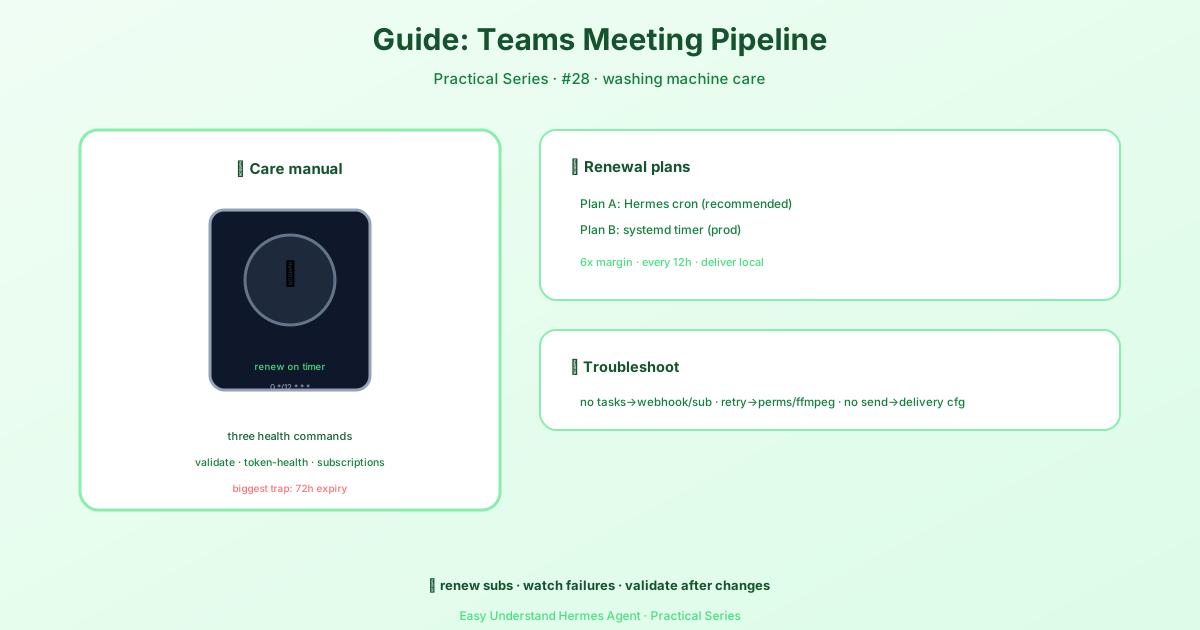
Before we dive into commands, let’s talk about the biggest gotcha: Microsoft Graph subscriptions expire every 72 hours. If nothing renews them, your meeting notifications silently stop after three days. The pipeline looks fine, but nothing happens. This is the #1 reason Graph-backed integrations fail.
The fix? You must schedule maintain-subscriptions to run automatically. Here are your three options:
Option 1: Hermes Cron (Easiest)
If you already run the Hermes gateway, use its built-in scheduler. First, create a script:
mkdir -p ~/.hermes/scripts
cat > ~/.hermes/scripts/maintain-teams-subscriptions.sh <<'EOF'
#!/usr/bin/env bash
exec hermes teams-pipeline maintain-subscriptions
EOF
chmod +x ~/.hermes/scripts/maintain-teams-subscriptions.sh
Then register a job that runs every 12 hours (that’s 6x headroom against the 72-hour expiry):
hermes cron create "0 */12 * * *" \
  --name "teams-pipeline-maintain-subscriptions" \
  --no-agent \
  --script maintain-teams-subscriptions.sh \
  --deliver local
Verify it’s registered:
hermes cron list
hermes cron status
Option 2: systemd Timer (Linux Production)
Create a service file at /etc/systemd/system/hermes-teams-pipeline-maintain.service:
[Unit]
Description=Hermes Teams pipeline subscription maintenance
After=network-online.target

[Service]
Type=oneshot
User=hermes
EnvironmentFile=/etc/hermes/env
ExecStart=/usr/local/bin/hermes teams-pipeline maintain-subscriptions
And a timer at /etc/systemd/system/hermes-teams-pipeline-maintain.timer:
[Unit]
Description=Run Hermes Teams pipeline subscription maintenance every 12 hours

[Timer]
OnBootSec=5min
OnUnitActiveSec=12h
Persistent=true

[Install]
WantedBy=timers.target
Enable it:
sudo systemctl daemon-reload
sudo systemctl enable --now hermes-teams-pipeline-maintain.timer
systemctl list-timers hermes-teams-pipeline-maintain.timer
Option 3: Plain Crontab
Simple and effective:
0 */12 * * * /usr/local/bin/hermes teams-pipeline maintain-subscriptions >> /var/log/hermes/teams-pipeline-maintain.log 2>&1Just make sure your cron environment has the MSGRAPH_* credentials. The easiest fix is sourcing ~/.hermes/.env at the top of a wrapper script.
Core Operator Commands
Here’s your daily toolkit:
- Validate config:
hermes teams-pipeline validate— run this after any config change - Check token health:
hermes teams-pipeline token-health— add--force-refreshif you suspect stale auth - Inspect subscriptions:
hermes teams-pipeline subscriptions - Renew near-expiry subscriptions:
hermes teams-pipeline maintain-subscriptions(use--dry-runfirst) - List recent jobs:
hermes teams-pipeline list— add--status failedto see problems - Show job details:
hermes teams-pipeline show <job-id> - Replay a job:
hermes teams-pipeline run <job-id>
Testing Meeting Fetches
You can dry-run fetching meeting artifacts:
hermes teams-pipeline fetch --meeting-id <meeting-id>
hermes teams-pipeline fetch --join-web-url "<join-url>"
Pro tip: For Teams /meet/ short URLs, you’ll need to pass --organizer-user-id <entra-user-id>. Graph rejects these URLs on the standard endpoint, but the organizer-scoped path works fine.
Routine Runbook
After first setup, run these in order:
hermes teams-pipeline validate
hermes teams-pipeline token-health --force-refresh
hermes teams-pipeline subscriptions
Then trigger a real meeting and confirm jobs appear:
hermes teams-pipeline list
hermes teams-pipeline show <job-id>
Daily checks:
- Run
maintain-subscriptions --dry-runto see if anything’s expiring - Check for failed jobs:
list --status failed - Verify your Teams delivery target is still correct
Before changing webhook URLs or delivery targets:
- Update your config
- Run
validate - Renew affected subscriptions
- Confirm new events land where expected
Failure Triage
No jobs being created? Check that:
msgraph_webhookis enabled- Your public URL points to
/msgraph/webhook - The client state matches
MSGRAPH_WEBHOOK_CLIENT_STATE - Subscriptions exist remotely and haven’t expired
Jobs stuck in retry? Look at:
- Transcript permissions and availability
- Recording permissions
ffmpegavailability (if recording fallback is enabled)- Graph token health
Verifying Renewal Works
After setting up your schedule, check after the first run:
hermes teams-pipeline subscriptions  # expirationDateTime should have advanced
hermes teams-pipeline maintain-subscriptions --dry-run  # should show "0 expiring soon"
If your webhook mysteriously stops working after exactly ~72 hours, the renewal job didn’t run. That’s your first suspect, every time.
Keep this runbook handy, and your Teams Meeting Pipeline will hum along without surprises.
📖 Official Docs
This article is based on the official Hermes Agent documentation:Official docs › guides/operate-teams-meeting-pipeline