Connect Google Gemini
Connect Google Gemini — easy-to-understand guide based on official docs
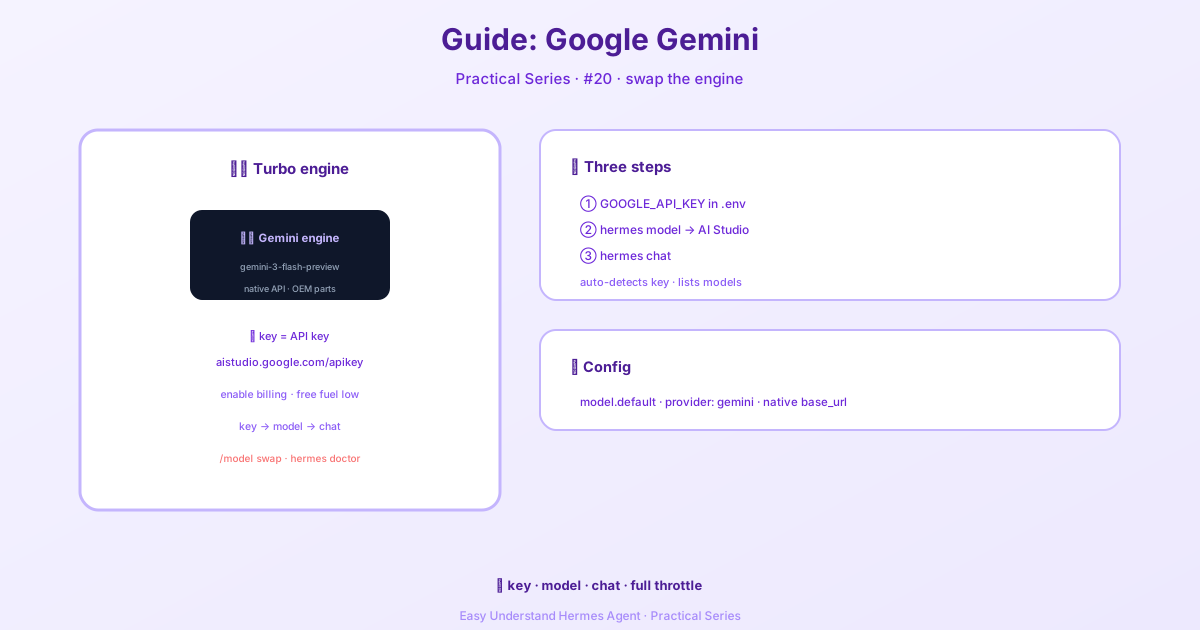
Connect Google Gemini
If you’ve been following along with our Hermes Agent series, you know we love giving you choices. Today, we’re diving into one of the most popular options: Google Gemini. The good news? Hermes now supports Gemini as a native provider — no OpenAI-compatible workarounds needed.
What’s New with Gemini Support?
Previously, connecting Gemini meant routing through an OpenAI-compatible endpoint. That worked, but it wasn’t perfect. Now, Hermes speaks Gemini’s native language through the generateContent API. This means better tool calling, smoother streaming, proper multimodal support, and access to Gemini-specific response metadata.
In plain English: your agent conversations will feel more natural, and complex multi-step tasks will work more reliably.
What You’ll Need
Before we start, grab these:
- A Google AI Studio API key — get one free at aistudio.google.com/apikey
- A billing-enabled Google Cloud project — this is important! Gemini’s free tier is too small for long agent sessions since Hermes may make several model calls per user turn
- Hermes installed — no extra Python packages required for the native provider
One quick tip: you can set your key as either GOOGLE_API_KEY or GEMINI_API_KEY. Hermes checks both names.
Quick Start Guide
Ready to connect? Here’s the fastest path:
# Add your Gemini API key
echo "GOOGLE_API_KEY=..." >> ~/.hermes/.env

# Select Gemini as your provider
hermes model
# → Choose "More providers..." → "Google AI Studio"
# → Hermes checks your key tier and shows available models
# → Select a model

# Start chatting
hermes chat
Prefer editing config files directly? Here’s what your ~/.hermes/config.yaml should look like:
model:
  default: gemini-3.7-flash
  provider: gemini
  base_url: https://generativelanguage.googleapis.com/v1beta
Why the Native Endpoint Matters
Google offers two ways to connect: a native Gemini API and an OpenAI-compatible endpoint. For Hermes agent sessions, always prefer the native endpoint:
https://generativelanguage.googleapis.com/v1betaHere’s why: Hermes internally keeps its agent loop in OpenAI-shaped messages, then translates everything to Gemini’s native schema. This includes:
- Messages → Gemini
contents[] - System prompts → Gemini
systemInstruction - Tool schemas → Gemini
functionDeclarations - Tool results → Gemini
functionResponseparts - Streaming → OpenAI-shaped chunks for the Hermes loop
If you previously set GEMINI_BASE_URL to the /openai URL, remove it or change it to the native endpoint above.
A couple of handy details: if your base URL is just the Google host with no version segment, Hermes adds /v1beta for you — so https://generativelanguage.googleapis.com works the same as the full path. The same applies to the Gemini TTS base URL. And note that chat only takes the native Gemini path when the base URL points at generativelanguage.googleapis.com or the Vertex AI express host; a proxy on another host is treated as OpenAI-compatible, so give it its /openai-style URL.
Vertex AI Express Mode Keys
Google actually issues two kinds of Gemini keys. AI Studio keys start with AIza…, while Vertex AI express-mode keys start with AQ.… and only work against aiplatform.googleapis.com (they get a 403 on the AI Studio host). Hermes spots the AQ. prefix and routes those keys to the right place automatically — just set GEMINI_API_KEY to the express key and leave GEMINI_BASE_URL unset. If you do set GEMINI_BASE_URL to https://aiplatform.googleapis.com, Hermes completes it to the publishers/google form for you. Express keys are separate from the OAuth-based Vertex AI provider, which needs no API key.
Choosing Your Model
The hermes model picker shows all available Gemini models. Here are the most useful ones:
| Model | ID | Best For |
|---|---|---|
| Gemini 3.8 Flash | gemini-3.8-flash |
Most capable Flash model for long-horizon agentic and coding work |
| Gemini 3.7 Flash | gemini-3.7-flash |
Recommended default — great speed and capability |
| Gemini 3.1 Pro Preview | gemini-3.1-pro-preview |
Complex reasoning, math, and coding |
| Gemini 3.5 Flash Lite | gemini-3.5-flash-lite |
Fastest, lowest-cost lightweight tasks |
| Gemini 2.5 Flash | gemini-2.5-flash |
Previous gen fast model with thinking |
| Gemini 2.5 Pro | gemini-2.5-pro |
Previous gen complex reasoning |
Important: Use native model IDs like gemini-3.7-flash, not OpenRouter-style IDs like google/gemini-3.7-flash.
Smart Aliases for Automatic Updates
Google offers moving aliases that automatically track the latest models:
| Alias | Tracks | Use Case |
|---|---|---|
gemini-pro-latest |
Latest Pro model | Want Google’s current Pro default |
gemini-flash-latest |
Latest Flash model | Want Google’s current Flash default |
model:
  default: gemini-pro-latest
  provider: gemini
  base_url: https://generativelanguage.googleapis.com/v1beta
Just remember: if you need strict reproducibility, stick with explicit IDs like gemini-3.1-pro-preview.
A Note on Gemma Models
Gemma models are also available through the Gemini API. Hermes hides very low-throughput Gemma entries from the default picker to prevent accidental selection for long agent sessions. But for evaluation purposes, you can use IDs like gemma-4-31b-it or gemma-4-26b-a4b-it.
Keep in mind these are evaluation options: Gemma’s Gemini API pricing is free-tier-only with low caps, so for sustained agent use you’ll want a paid Gemini model, a self-hosted deployment, or another provider with proper quota.
Final Thoughts
Connecting Gemini to Hermes is now simpler and more powerful than ever. The native adapter means your agents can handle complex tool loops, streaming responses, and multimodal inputs with ease. Start with gemini-3.7-flash for the best balance, and experiment from there!
Happy building!
Keep reading: Hermes with Google Vertex AI — Billing through Google Cloud instead? Run Hermes with Google Vertex AI and the same Gemini models.
📖 Official Docs
This article is based on the official Hermes Agent documentation:Official docs › guides/google-gemini