Slack — Team AI Assistant
Slack — Team AI Assistant — easy-to-understand guide based on official docs
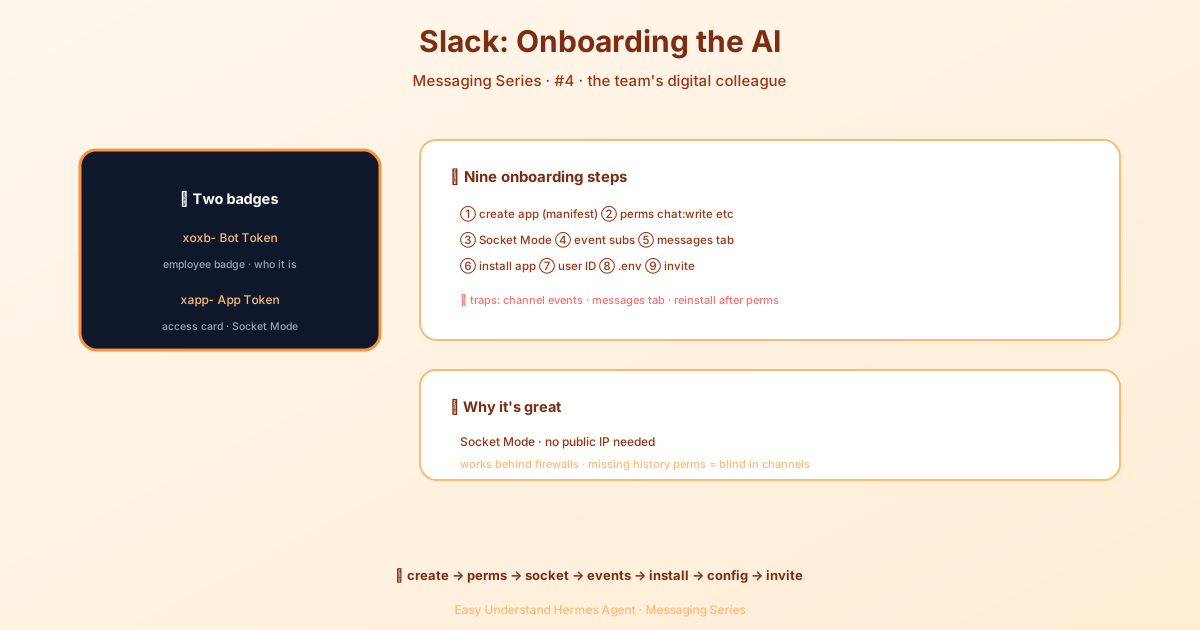
Slack — Team AI Assistant
If your team lives in Slack, you probably dream of having an assistant that’s right there in your DMs and channels — someone who can answer questions, dig through files, and help with tasks without you ever leaving the app. That’s exactly what Hermes Agent can do.
In this post, we’ll walk through how to connect Hermes to Slack as a bot. The best part? You don’t need a public server or complicated networking. Hermes uses Socket Mode, which means it connects over a simple WebSocket. That works perfectly behind firewalls, on your laptop, or on a private server.
Let’s get started.
What You’ll Need
Before we dive in, here’s a quick overview of what makes the Slack integration tick:
- Library:
slack-bolt/slack_sdkfor Python (Socket Mode) - Connection: WebSocket — no public URL required
- Auth tokens: Bot Token (
xoxb-) + App-Level Token (xapp-) - User identification: Slack Member IDs (e.g.,
U01ABC2DEF3)
One important note: classic Slack apps using the old RTM API were fully deprecated in March 2025. Hermes uses the modern Bolt SDK with Socket Mode, so if you have an old app, you’ll need to create a new one following the steps below.
Step 1: Create a Slack App
The fastest way to get started is to let Hermes generate a manifest for you. This manifest declares every built-in slash command (/btw, /stop, /model, …), all required OAuth scopes, event subscriptions, and enables Socket Mode — all in one go.
Option A: From a Hermes-generated manifest (recommended)
-
Generate the manifest. New Slack apps must use Agent view:
hermes slack manifest --agent-view --writeThis writes
~/.hermes/slack-manifest.jsonand prints paste-in instructions. If you have an existing app that still uses Slack’s legacy Assistant view, you can omit--agent-viewuntil you’re ready to migrate.Want to populate Slack’s long app description from a file? Add
--long-description-file:hermes slack manifest --agent-view \ --long-description-file AGENTS.md --writeThe file contents are preserved exactly within Slack’s 175–4,000-character range. You can also use
--long-description "..."for inline text instead — just don’t combine both options. -
Go to https://api.slack.com/apps → Create New App → From an app manifest
-
Pick your workspace, paste the JSON contents, review, click Next → Create
-
Skip ahead to Step 6: Install App to Workspace. The manifest handled scopes, events, and slash commands for you.
Option B: From scratch (manual)
- Go to https://api.slack.com/apps
- Click Create New App → From scratch
- Enter an app name (e.g., “Hermes Agent”) and select your workspace
- Click Create App
You’ll land on the app’s Basic Information page. Continue with Steps 2–6 below.
Step 2: Configure Bot Token Scopes
Navigate to Features → OAuth & Permissions in the sidebar. Scroll to Scopes → Bot Token Scopes and add the following:
| Scope | Purpose |
|---|---|
chat:write |
Send messages as the bot |
app_mentions:read |
Detect when @mentioned in channels |
channels:history |
Read messages in public channels the bot is in |
channels:read |
List and get info about public channels |
groups:history |
Read messages in private channels the bot is invited to |
im:history |
Read direct message history |
im:read |
View basic DM info |
im:write |
Open and manage DMs |
mpim:history |
Read group direct message (multi-person DM) history |
mpim:read |
View basic group DM info |
users:read |
Look up user information |
files:read |
Read and download attached files, including voice notes/audio |
files:write |
Upload files (images, audio, documents) |
Heads up: Missing scopes = missing features. Without channels:history and groups:history, the bot will not receive messages in channels — it will only work in DMs. Without files:read, Hermes can chat but cannot reliably read user-uploaded attachments. These are the most commonly missed scopes.
Optional scopes:
| Scope | Purpose |
|---|---|
groups:read |
List and get info about private channels |
assistant:write |
Render the working-state status line (“is thinking…”) next to the bot name while it processes a message. Without this scope the status call (agents.sessions.setStatus on slack-sdk 3.44+, assistant.threads.setStatus on older SDKs) fails silently and Slack shows its own rotating generic placeholders instead (“Finding answers…”, “Reviewing findings…”, …) — Hermes never controls the text. Required for typing_status_text to have any visible effect. |
Step 3: Enable Socket Mode
Socket Mode lets the bot connect via WebSocket instead of requiring a public URL.
- In the sidebar, go to Settings → Socket Mode
- Toggle Enable Socket Mode to ON
- You’ll be prompted to create an App-Level Token:
- Name it something like
hermes-socket(the name doesn’t matter) - Add the
connections:writescope - Click Generate
- Name it something like
- Copy the token — it starts with
xapp-. This is yourSLACK_APP_TOKEN
You can always find or regenerate app-level tokens under Settings → Basic Information → App-Level Tokens.
Step 4: Subscribe to Events
This step is critical — it controls what messages the bot can see.
- In the sidebar, go to Features → Event Subscriptions
- Toggle Enable Events to ON
- Expand Subscribe to bot events and add:
| Event | Required? | Purpose |
|---|---|---|
message.im |
Yes | Bot receives direct messages |
message.mpim |
Yes | Bot receives messages in group DMs (multi-person DMs) it’s added to |
message.channels |
Yes | Bot receives messages in public channels it’s added to |
message.groups |
Recommended | Bot receives messages in private channels it’s invited to |
app_mention |
Yes | Prevents Bolt SDK errors when bot is @mentioned |
- Click Save Changes at the bottom of the page
Missing event subscriptions is the #1 setup issue. If the bot works in DMs but not in channels, you almost certainly missed one of the event subscriptions above.
Step 5: Enable the Messages Tab
This step enables direct messages to the bot. Without it, users see “Sending messages to this app has been turned off” when trying to DM the bot.
- In the sidebar, go to Features → App Home
- Scroll to Show Tabs
- Toggle Messages Tab to ON
- Check “Allow users to send Slash commands and messages from the messages tab”
Even with all the correct scopes and event subscriptions, Slack will not allow users to send direct messages to the bot unless the Messages Tab is enabled. This is a Slack platform requirement, not a Hermes configuration issue.
Step 6: Set Up OAuth & Install the App
- Go to Features → OAuth & Permissions
- Click Install App to Workspace
- Review the permissions and click Allow
- Copy the Bot User OAuth Token — it starts with
xoxb-. This is yourSLACK_BOT_TOKEN
If you change scopes or event subscriptions later, you must reinstall the app for the changes to take effect. The Install App page will show a banner prompting you to do so.
Step 7: Find User IDs for the Allowlist
Hermes uses Slack Member IDs (not usernames or display names) for the allowlist.
To find a Member ID:
- In Slack, click on the user’s name or avatar
- Click View full profile
- Click the ⋮ (more) button
- Select Copy member ID
Member IDs look like U01ABC2DEF3. You need your own Member ID at minimum.
Step 8: Configure Hermes
Now that you have your tokens, it’s time to configure Hermes. Add the following to your ~/.hermes/.env file:
# Required
SLACK_BOT_TOKEN=xoxb-your-bot-token-here
SLACK_APP_TOKEN=xapp-your-app-token-here
SLACK_ALLOWED_USERS=U01ABC2DEF3              # Comma-separated Member IDs

# Optional
SLACK_HOME_CHANNEL=C01234567890              # Default channel for cron/scheduled messages
SLACK_HOME_CHANNEL_NAME=general              # Human-readable name for the home channel (optional)
Or run the interactive setup:
hermes gateway setup # Select Slack when promptedThen start the gateway:
hermes gateway              # Foreground
hermes gateway install      # Install as a user service
sudo hermes gateway install --system   # Linux only: boot-time system service
One tip for Codex-backed Slack peer-agent channels: prefer agent.reasoning_effort: high or lower. xhigh can spend the whole turn in hidden reasoning and never produce visible text; Hermes now suppresses those incomplete-turn warnings from the thread and keeps the diagnostics in gateway logs.
Step 9: Invite the Bot to Channels
After starting the gateway, you need to invite the bot to any channel where you want it to respond:
/invite @Hermes AgentThe bot will not automatically join channels. You must invite it to each channel individually.
Slash Commands
Every Hermes command (/btw, /stop, /new, /model, /help, …) is a native Slack slash command — exactly the way they work on Telegram and Discord. Type / in Slack and the autocomplete picker lists every Hermes command with its description.
Under the hood, Hermes ships with a generated Slack app manifest (see Step 1, Option A) that declares every command in COMMAND_REGISTRY as a slash command. In Socket Mode, Slack routes the command event through the WebSocket regardless of the manifest’s url field.
Agent messaging experience
New Slack apps use Slack’s Agent messaging experience. Existing Hermes Assistant apps can migrate by regenerating the manifest with --agent-view:
hermes slack manifest --agent-view --writeUpdate the manifest in Features → App Manifest, then reinstall the app if Slack asks. Agent view cannot be reverted to Assistant view, and users may need to hard-refresh Slack after the switch. The generated Agent manifest subscribes to message.im, app_home_opened, and app_context_changed, so Hermes can identify a Messages-tab DM and receive the user’s active Slack context with a turn. Hermes only supplies that context as a label; it does not read the viewed channel’s history.
When Hermes adds new commands (e.g. after hermes update), regenerate the manifest with hermes slack manifest --write, then paste the new contents of ~/.hermes/slack-manifest.json into Features → App Manifest → Edit in your Slack app and save. Slack will prompt to reinstall the app if scopes or slash commands changed.
For backward compatibility with older manifests, you can still type /hermes bg run the tests — Hermes routes it the same way as /bg run the tests. Free-form questions also work: /hermes what's the weather? is treated as a regular message.
Slack itself blocks native slash commands inside thread replies. As a workaround, Hermes recognises a leading ! as an alternate command prefix that works in threads (and anywhere else): type !queue, !stop, !model gpt-5.4, etc. as a regular thread reply, and Hermes treats it identically to the slash form and replies in the same thread. Only the first token is checked against the known command list, so casual messages like !nice work pass through to the agent unchanged. The bang form also works behind a mention (@Hermes !stop) and with leading whitespace. When approval prompts fall back to a text prompt, reply with !approve / !deny — the form that works inside threads.
Slash replies are ephemeral
Replies to a native slash command (e.g. /status, /help) are delivered ephemerally — “Only visible to you” — so command output never spams the channel. The “Running /cmd…” placeholder is replaced with the real reply, and long replies are chunked into follow-up ephemeral messages. Slack caps the reply flow at 5 posts, so extremely long output is closed with an explicit truncation notice rather than silently dropped. If the primary ephemeral path fails, Hermes retries via a second ephemeral API path — a slash reply is never posted publicly to the channel as a fallback. Commands typed as regular messages (!cmd in threads, @Hermes /cmd) reply as normal visible messages instead.
Clarify prompts (one-tap buttons)
When the agent needs to ask you a multiple-choice question (the clarify tool), Slack renders it as Block Kit buttons — one tap per option, plus an “✏️ Other…” button that switches to free-text mode (your next typed message becomes the answer). After a tap, the message updates in place to show who answered and what was chosen; further clicks on the same prompt are ignored. Button clicks honor the same user authorization as messages. When the prompt times out (agent.clarify_timeout), the session is reset, or you reply with free text instead of tapping a button, the card is rewritten in place without its buttons (“⏳ This prompt expired…” or “↩️ Clarification cancelled…”); a click on a card orphaned by a gateway restart still tells you to re-ask instead of silently eating the click. Open-ended clarify questions render as a plain question instead.
Wrapping Up
Connecting Hermes to Slack is straightforward once you know the steps. The key takeaways:
- Use the manifest — it saves you tons of manual configuration
- Don’t skip scopes — especially
channels:historyandgroups:history - Event subscriptions are critical — missing them means the bot won’t see channel messages
- Socket Mode means no public URL needed — perfect for private setups
Now your team has an AI assistant that’s always in Slack, ready to help. Happy chatting!
Keep reading: Mattermost Hermes Agent — Need the self-hosted equivalent? The Mattermost Hermes Agent guide covers bot accounts and channel setup.
📖 Official Docs
This article is based on the official Hermes Agent documentation:Official docs › user-guide/messaging/slack